


Communication has always been a necessary feature in most online games. Although, this is mostly common in online team based, and multiplayer games.
We can pass information in our games through the chat section. But sometimes, typing out said information can be a bit tricky, especially during a heated game.
I mean you wouldn’t want to by typing out to your teammates when you are being pushed in a warzone match right? And that logic applies in every other game which is why these platforms make use of Voice chat functions.
In Roblox, Voice chat also plays a significant role in whatever game you are playing. But while a lot of players make use of third party apps to achieve this, Roblox does have this function inbuilt.
However, unlike most games, you don’t get this feature right from the get go. You still need to do certain things before you can fully enjoy having comms in your games.
In this article, I will be guiding you through the step by step guide needed to activate voice chat in Roblox. But before we begin, let’s answer this burning question quickly.
Why is Communications Necessary in Roblox
You are probably thinking Roblox in general can’t be sweaty enough to need Voice chat. And for the most part, you are both right and wrong.
Sure, most of the games are single player based, but for the more popular games like 99 Nights in the Forest and Blox fruits, you might need to reconsider.
Regardless of whatever Roblox game you are playing, having the Voice chat enabled can come in clutch a lot.
Let’s not forget that this is Spacial Audio, meaning you get a full 360 degree tell of where a sound is coming from. So in party que games, you can easily tell who is talking, and where they are talking from.
Now, let’s take a look at how you can get this function up and running.
How to Activate Voice Chat in Roblox
We are going to take a look at how to activate Voice chat for players with an ID and players without. So don’t worry, this guide is for everyone.
How to Activate Voice Chat with ID
To activate Voice chat in this Category, all you have to do is follow these steps. And they work for both PC (app) and Mobile (By using the Roblox website):
Step 1
You need to Verify your account, and that includes email Verification, Phone Number verification, and ID verification.
- To do this, click on settings
- Select Account information
- Then complete the verification for each of those fields
Step 2
Afterwards, you will then need to complete Age verification. And they do this by taking a selfie of you (It won’t be shared or saved).
Step 3
Next, you need to navigate to the settings menu, then click on Privacy and content restrictions. Once there, click on Communication, then set all the options in Experience chat to ‘Everyone’, while for party you set the options to ‘Connections’.
Step 4
Once you have completed these steps, you will need to wait a while for Roblox to activate Voice Chat. This could take a couple of minutes, days, or even weeks.
Step 5
When your Voice chat is enabled (you should get a mail stating this), all you have to do is switch it on. To do that, click on settings, privacy and content restrictions, and Communication.
Step 6
You should now see the option for Voice chat on this page. Now click on Voice chat and switch on the feature.
If you follow these steps properly, you can now use voice chat option in whatever game you are playing
How to Activate Voice Chat without ID
Now due to age restrictions, users under 13+ cannot use the Voice chat option. But there are two ways around this issue.
So just follow either of these methods and you should have Voice chat functionality in Roblox.
Method 1
This method does require you to wait for a week or two before actually getting the voice chat. But if you cannot wait two weeks, just skip to Method 2
Step 1
The first thing you want to do is make sure both your email and phone number are verified. To do this:
- Click on Settings
- Select Account information
- Then Complete the verification for both fields
Step 2
Now all you need to do after this:
- Still in settings, select Privacy and Content restrictions.
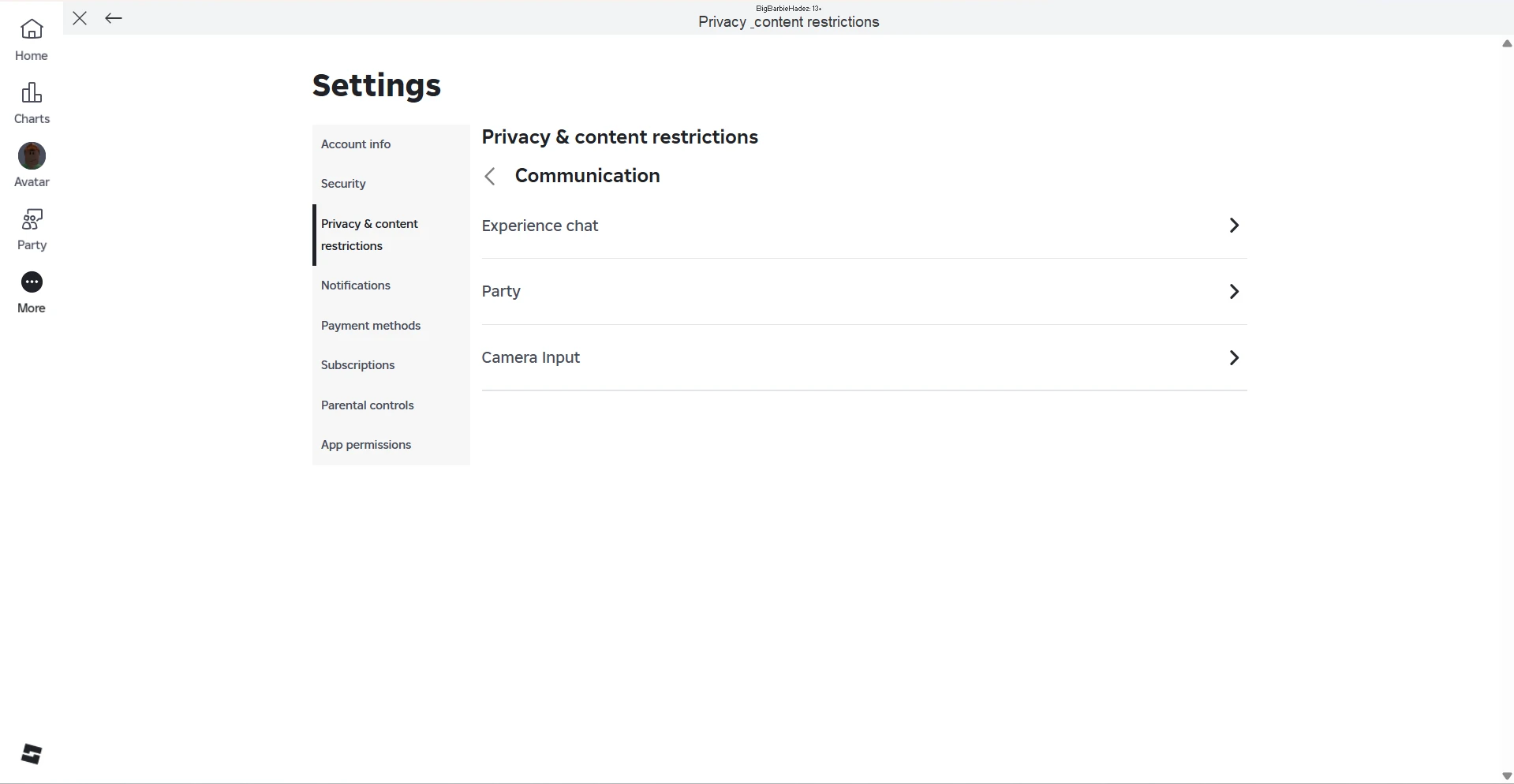
- Click on Communications.
- Now in Experience Chat, set both options for experience chat and Direct chat to “Everyone”.
- Next go back to Communications.
- Now in Party, set both options for Party and Group Party to “Connections”. If it is already in Connections then just leave it there.
- Go back to communications.
- Now Select Camera Input, and turn it on.
Once you have done these two steps, just wait for a couple of weeks. You should have the Voice Chat option in your Communication section afterwards.
Now all you need to do is enable it, and that’s all.
Method 2
Now this method is not 100% certain, but it has worked for a lot of people. Just follow these steps:
Step 1
Find the Help and Safety section or Help Center. You can find it by:
- On PC app, click on more
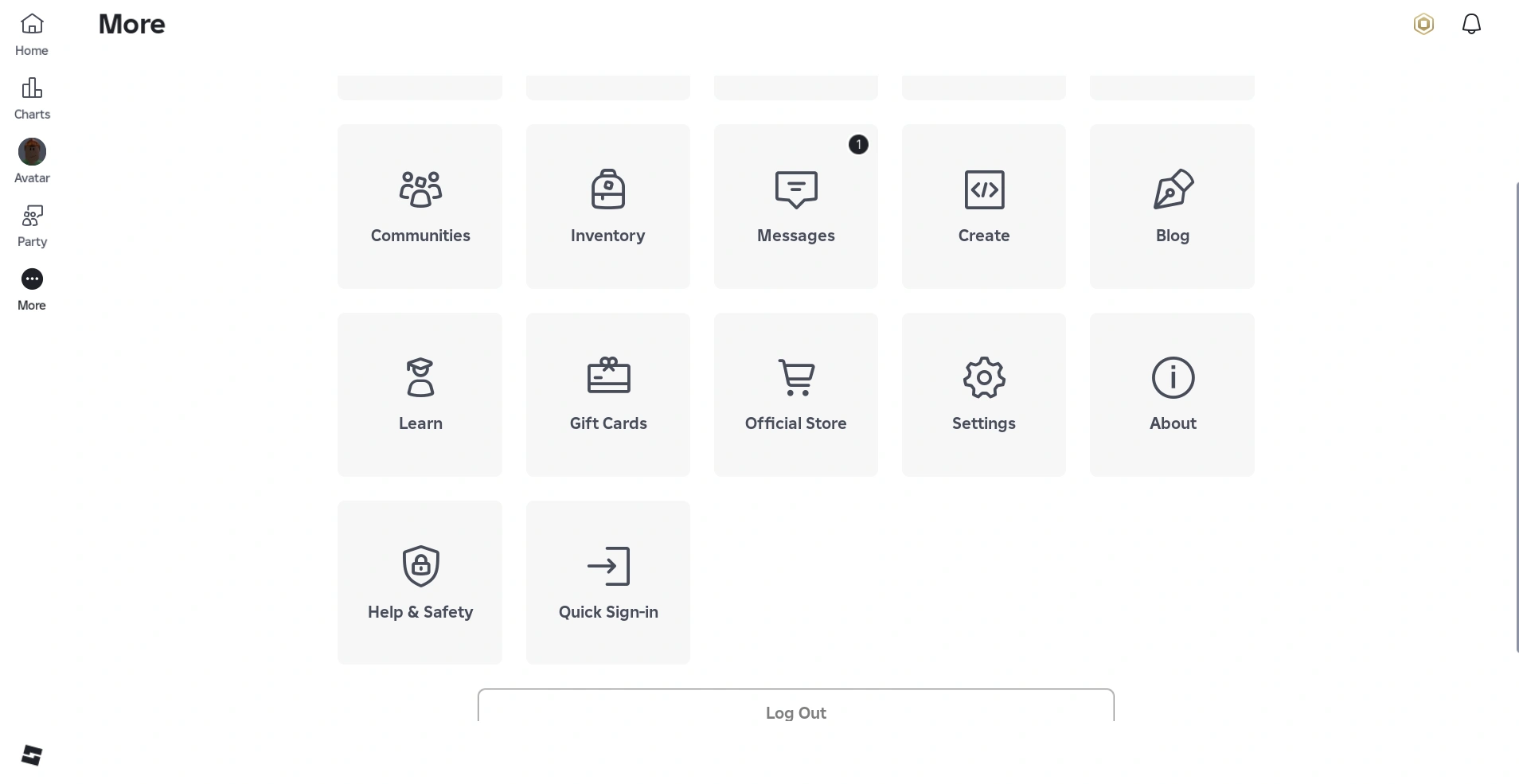
- Scroll down to help and safety
- Next Click on Help and you will be redirected to the Help Center webpage
- On mobile website, click on the settings button
- Select help and safety
- Click on Help Center, and you will be directed to the Help Center page
Step 2
Now what you want to do is find the appropriate section:
- In the search bar, type “Get Voice Chat”, and select the first option that pops
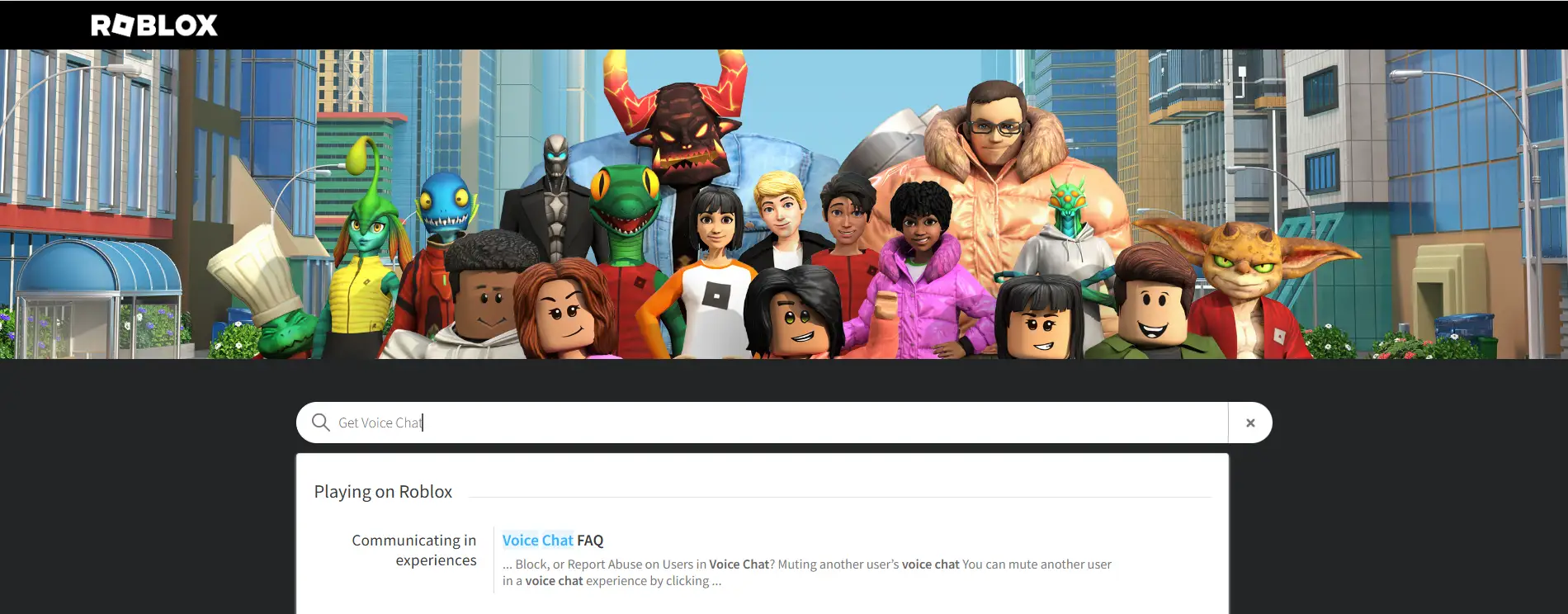
- Now in the page you are directed to, scroll to the bottom and select Contact Support Here
- You will be redirected to a contact page
- Next fill in your details, like email, username
- Scroll down to the issue details.
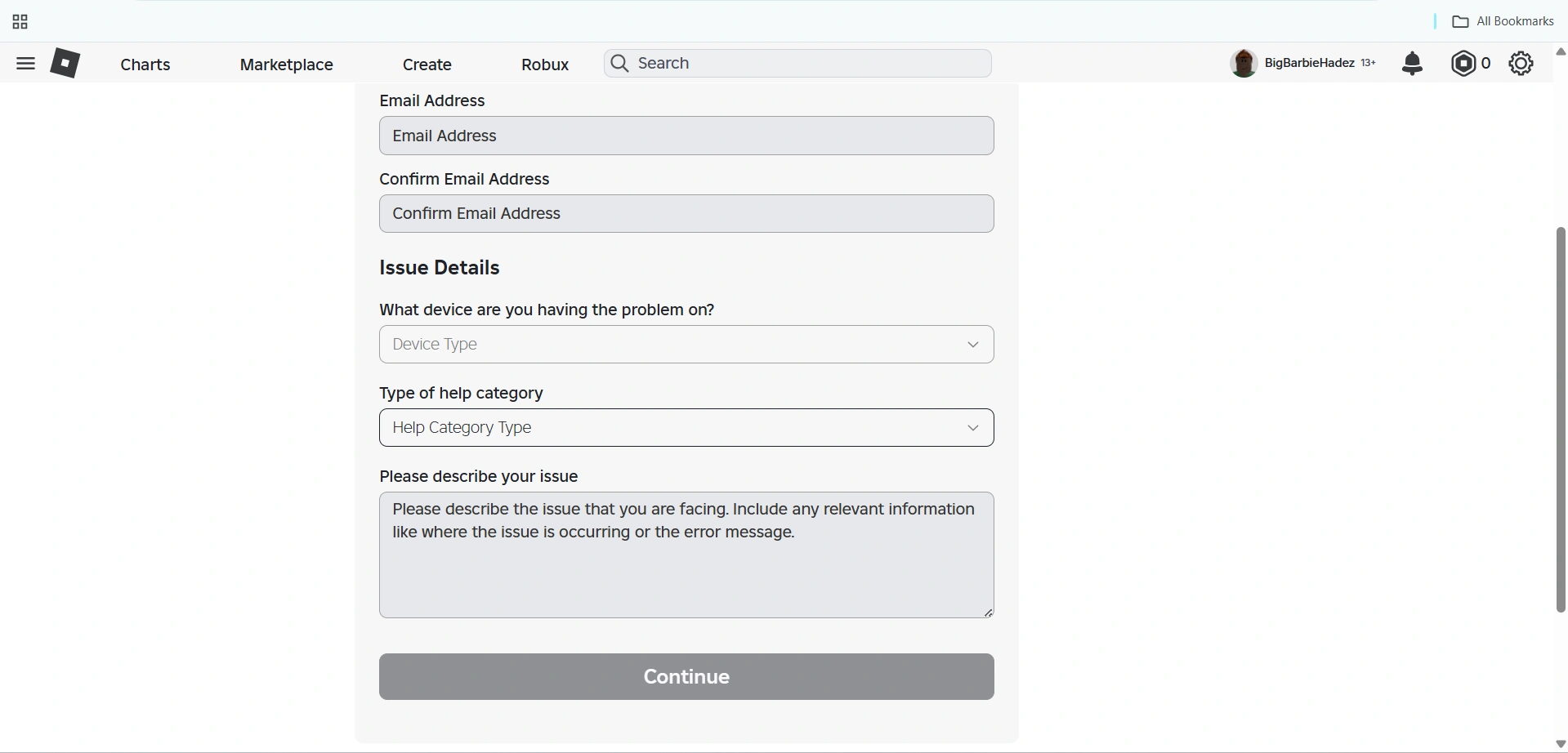
- Select the specific device you want to enable Voice chat for (PC, Mobile etc)
- In the “Type of help Category”, select “How to”
- Finally, in the description, include a short message and specify that you want to activate Voice chat on your account.
- Click on Continue and that’s it
After a while, you will get a message stating that the Voice chat feature is now active. Simply enable it in the Communication menu, and there you have it.
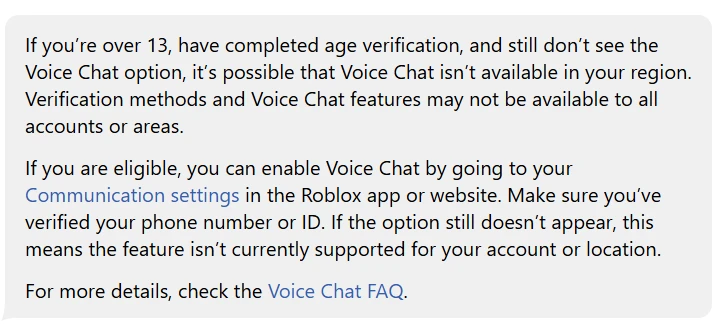
Note: The Voice Chat option is also not available for most users in certain regions. So regardless of whatever step you follow, if you are not in recognized regions, you can’t have Voice chat.
In Conclusion
Voice chat is and will always be a welcome feature in Roblox. And that is due to the increase in more competitive games.
But besides that, it is also a great way to have a chill gaming experience with your friends or party. In the end, that is what really matters.

Hi, I’m Tana Joshua Ayo-Ogbor, a competitive gamer and writer who loves creating in-depth Roblox and Minecraft guides, Top 10s, and gameplay tips. I’ve competed in the African Esports Championship and enjoy sharing pro-level insights to help players level up their game. When I’m not writing, you’ll probably find me grinding the ranks in MLBB or Dota 2.