

Last updated on July 31st, 2026 at 10:04 am
Minecraft usually runs fine on default settings, but large worlds, heavy modpacks, shaders, and high-resolution texture packs can make the game lag, freeze, or crash.
One simple fix is to allocate more RAM to Minecraft. This gives the game more memory to load chunks, mods, textures, and world data smoothly.
Quick Summary:
Best for Vanilla Minecraft: 4 GB RAM
Best for Light Mods: 4–6 GB RAM
Best for Heavy Modpacks: 6–8 GB RAM
Best for Shaders + Mods: 8–10 GB RAM
Important Rule: Do not allocate more than 50% of your total system RAM
Related Guides: You can also check our Minecraft Guides, Best Minecraft Seeds, and How to Tame a Parrot in Minecraft for more Minecraft tips.
How Much RAM Should You Allocate to Minecraft?
The amount of RAM you should allocate depends on how you play Minecraft. Vanilla Minecraft needs less RAM, while modded Minecraft needs more.
| Minecraft Setup | Recommended RAM |
|---|---|
| Vanilla Minecraft | 3–4 GB |
| Light Mods | 4–6 GB |
| Medium Modpacks | 6–8 GB |
| Heavy Modpacks | 8–10 GB |
| Shaders + High-Resolution Texture Packs | 8–10 GB |
Do not allocate all your system RAM to Minecraft. Your computer still needs memory for Windows, background apps, Discord, browser tabs, recording software, and the Minecraft Launcher itself.
How to Allocate More RAM Using the Minecraft Launcher
The easiest way to allocate more RAM is through the official Minecraft Launcher. This method works for Minecraft Java Edition.
- Open the Minecraft Launcher.
- Click on the Installations tab.
- Find the Minecraft version or profile you want to edit.
- Click the three dots next to that profile.
- Select Edit.
- Click More Options.
- Find the JVM Arguments box.
- Look for the part that says -Xmx2G or something similar.
- Change the number to the amount of RAM you want to allocate.
- Click Save.


For example, if you want to allocate 6 GB of RAM, change:
-Xmx2Gto:
-Xmx6GAfter saving, launch Minecraft using that profile. You can press F3 in-game to check the allocated memory shown near the top-right area of the debug screen.
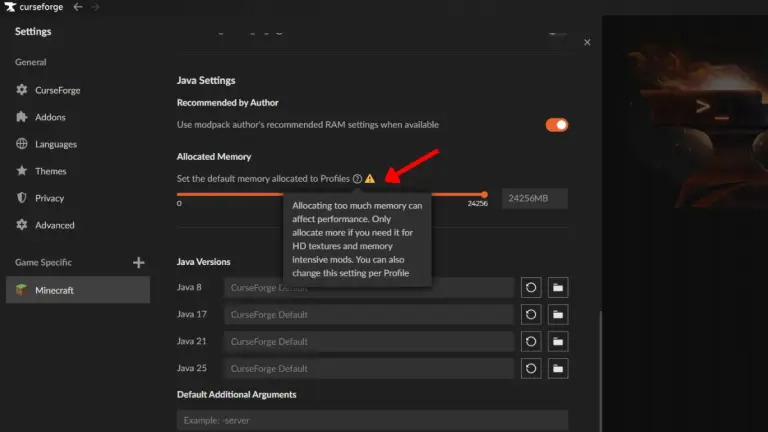
How to Allocate More RAM in CurseForge
If you play Minecraft modpacks through CurseForge, you can change RAM allocation from the app settings.
- Open the CurseForge app.
- Click the Settings icon.
- Go to the Minecraft section.
- Find Java Settings.
- Look for the Allocated Memory slider.
- Move the slider to the amount of RAM you want.
- Launch your modpack again.


CurseForge saves these changes automatically, so you can launch your modpack normally after adjusting the slider.
Best RAM Settings for Minecraft Modpacks
For modpacks, the right RAM setting depends on how large the pack is. Small packs may run fine with 4 GB, while large packs may need 8 GB or more.
| Modpack Type | Recommended RAM |
|---|---|
| Small Modpacks | 4 GB |
| Medium Modpacks | 6 GB |
| Large Modpacks | 8 GB |
| Very Heavy Modpacks with Shaders | 8–10 GB |
If your game still crashes after allocating more RAM, the issue may be caused by incompatible mods, outdated drivers, Java problems, or shader settings instead of memory.
How to Check Allocated RAM in Minecraft
You can check if Minecraft is using the new RAM setting by opening the debug screen.
- Launch Minecraft.
- Enter a world.
- Press F3 on your keyboard.
- Look near the top-right area for memory usage.
If the memory limit matches what you set in the launcher or CurseForge, the RAM allocation worked.
Common Mistakes to Avoid
Allocating more RAM can help, but doing it incorrectly can create new problems. Avoid these mistakes before changing your settings.
- Allocating too much RAM: Giving Minecraft too much memory can leave your system with less RAM for Windows and background apps.
- Expecting FPS boosts only from RAM: More RAM does not always increase FPS. Graphics card, processor, shaders, and render distance also matter.
- Changing random JVM settings: Only change the
-Xmxvalue if you are not sure what the other arguments do. - Using heavy shaders on weak hardware: Shaders need GPU power, not just RAM.
- Ignoring mod conflicts: More RAM will not fix broken or incompatible mods.
Does Allocating More RAM Increase FPS?
Allocating more RAM can improve performance if Minecraft was running out of memory. It may reduce crashes, freezing, long loading times, and stutters.
However, it does not always increase FPS. If your FPS is low because of shaders, render distance, weak graphics hardware, or CPU limits, adding more RAM may not fix the problem.
Best Tips Before Increasing RAM
- Close unnecessary apps before launching Minecraft.
- Use 4 GB for vanilla Minecraft and 6–8 GB for most modpacks.
- Do not allocate more than half of your total system RAM.
- Lower render distance if your game still lags.
- Update graphics drivers if shaders are causing FPS drops.
- Remove broken or outdated mods if your modpack keeps crashing.
Final Thoughts
Allocating more RAM to Minecraft is useful if your game crashes, freezes, or struggles with mods, shaders, and large worlds.
For most players, 4 GB is enough for vanilla Minecraft, while 6–8 GB works well for many modpacks. Heavy modpacks with shaders may need 8–10 GB, but you should avoid giving Minecraft too much RAM.
Use the Minecraft Launcher for normal Java Edition profiles and CurseForge settings for modpacks. After changing the setting, launch the game and press F3 to confirm the new allocated memory.
FAQs
How much RAM should I allocate to Minecraft?
For vanilla Minecraft, 4 GB is usually enough. For modpacks, 6–8 GB works well for most players. Heavy modpacks with shaders may need 8–10 GB.
Can I allocate more RAM to Minecraft Bedrock Edition?
No, Minecraft Bedrock Edition manages memory automatically and does not offer a manual RAM allocation option like Java Edition.
Does allocating more RAM increase FPS?
Not always. More RAM can reduce crashes and stutters if Minecraft was running out of memory, but FPS also depends on your CPU, GPU, shaders, and render distance.
What does -Xmx mean in Minecraft?
-Xmx controls the maximum amount of RAM Java can use for Minecraft. For example, -Xmx6G gives Minecraft up to 6 GB of RAM.
Is it bad to allocate too much RAM to Minecraft?
Yes, allocating too much RAM can leave less memory for your operating system and other apps, which may cause lag or instability.
How do I know if Minecraft needs more RAM?
If Minecraft crashes, freezes, stutters, or struggles when loading chunks, mods, or shaders, increasing RAM may help.

Abhigyan identifies himself as a tech geek, gaming cognoscenti, and also a connoisseur of music. Unidentified and mysterious phenomena never fail to gather his undivided attention. When not reading about bizarre and perplexing entities across the Universe, he can often be found cheering for his favorite teams in Football.