
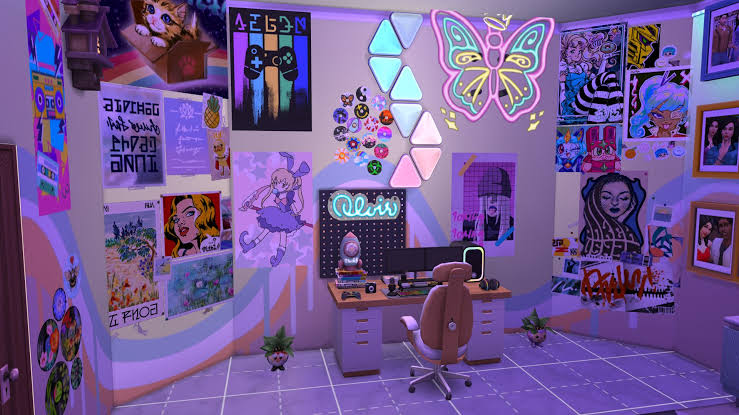

Designing a gaming room in The Sims 4 is a fun way to give your favorite Sim a space that reflects their personality. From adorable pastel gaming bedrooms and colorful neon battlestations to professional streaming studios, there are countless ways to customize your virtual entertainment space.
These 10 Sims 4 gaming room ideas combine creative furniture arrangements, custom content (CC), gaming accessories, and beautiful lighting. You can recreate these setups inside your Sims’ homes or use them as inspiration for designing your own real-life gaming room.
More Gaming Room Ideas to Explore:
10 Creative Sims 4 Gaming Room Ideas to Recreate
1 Create an Adorable Anime-Inspired Gaming Room
Give your Sim a playful gaming bedroom filled with anime-inspired artwork, colorful furniture, and cute accessories. A baby-blue gaming chair paired with a white computer desk creates a cheerful foundation, while lavender accents and a patterned round rug make the space feel more personal.
The Cute Gamer Pack by Desimny is a useful starting point for this aesthetic. Arrange its decorative prints above the workstation and choose a coordinating rug to define the gaming corner. Add a few plush toys on a nearby shelf without overcrowding the desk.
CC requirement: The gaming chairs in this collection require the High School Years expansion pack. Check the requirements before downloading.
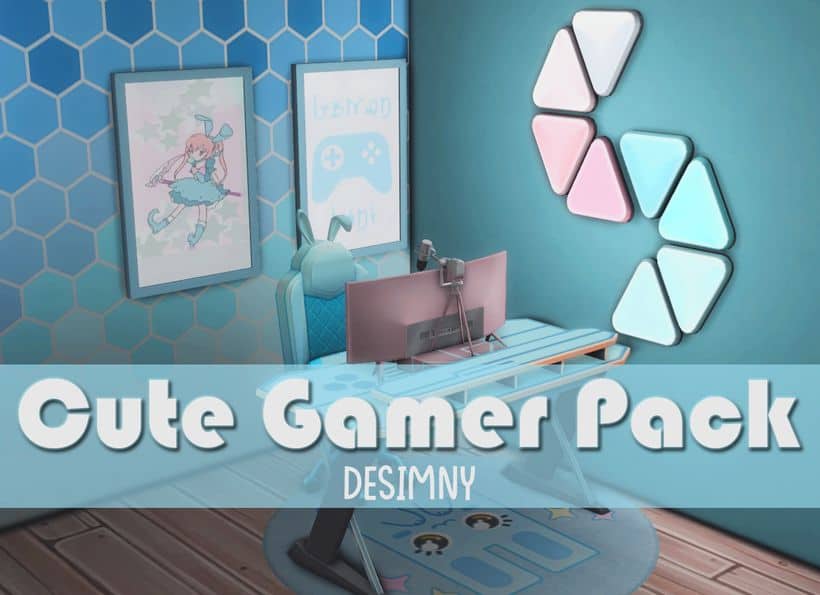
Image credit: @wewantmods.com
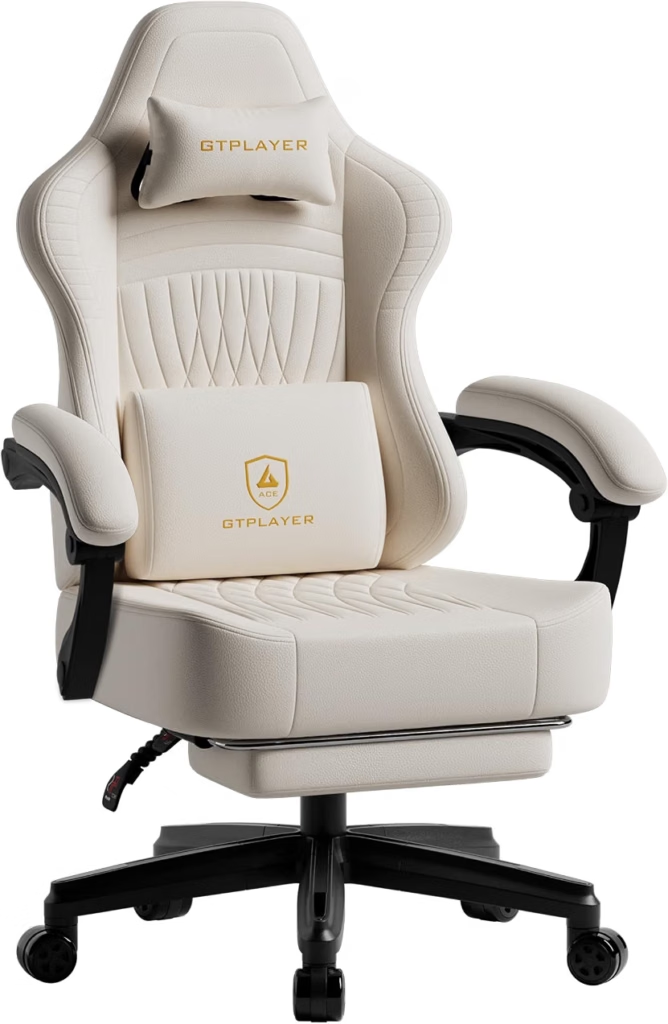
Amazon Find: Cute Pastel Gaming Chair
Bring this adorable Sims-inspired aesthetic into your real bedroom with a pastel gaming chair in pink, lavender, or baby blue.
2 Design an Aesthetic Pink Content Creator Studio
A pastel streaming studio is perfect for a Sim who loves creating content, playing video games, and spending time at their computer. Build the room around a blush-pink workstation with white furniture, coordinated computer accessories, and soft lighting.
Use the Content Creator Room Set by NICKNAME_sims4 to introduce streaming equipment, a portrait-oriented monitor, and decorative technology. Position the microphone beside the main computer and place an illuminated sign on the wall behind the desk. A narrow shelving unit can hold decorative books, plants, and collectibles.
Styling tip: Combine different shades of pink with plenty of white space. This prevents the room from appearing overly saturated and makes individual accessories stand out.
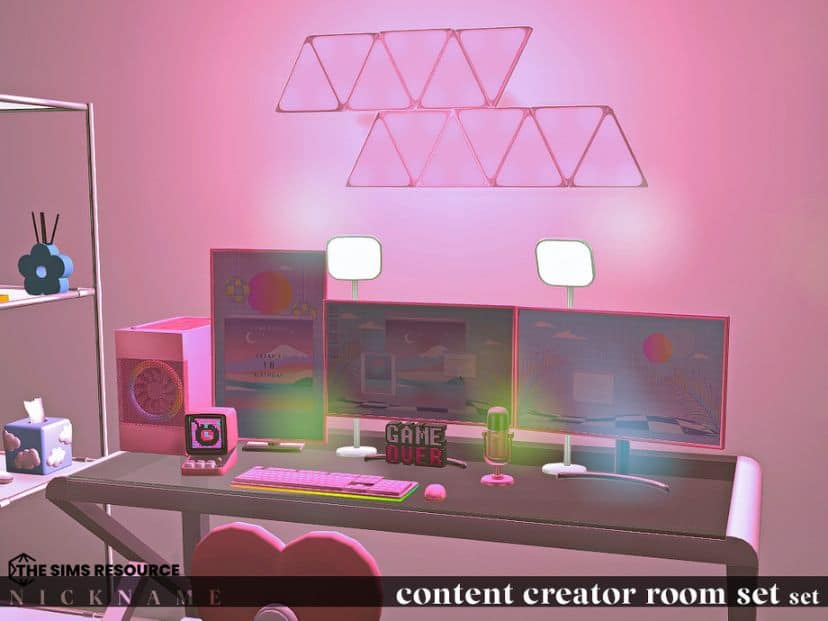
Image credit: @wewantmods.com
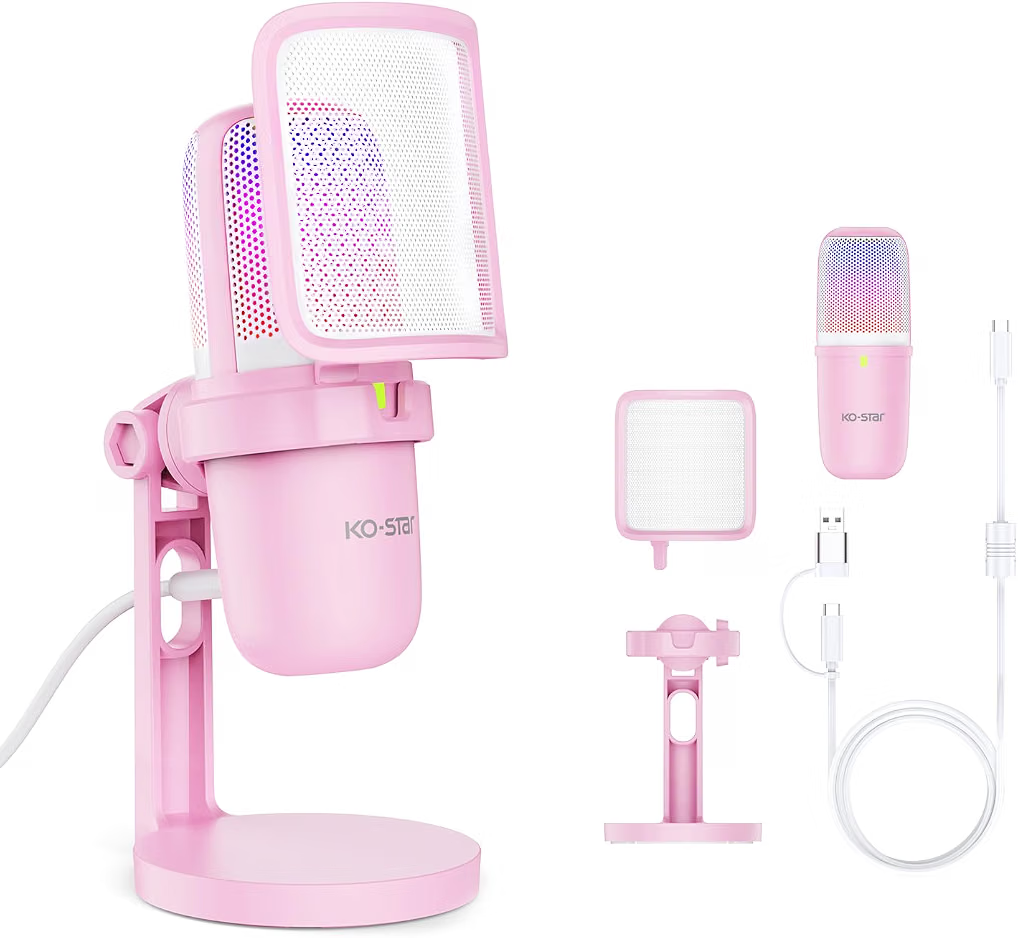
Amazon Find: Pink USB Streaming Microphone
A pastel-colored microphone can complement a real-life pink gaming desk or content creation station.
3 Build a Colorful Neon Gaming Room
Neon lighting can completely change the atmosphere of a virtual gaming room. Instead of covering every wall with decorations, create an illuminated feature wall using a few playful shapes and colorful accents.
Syboubou’s neon lighting collection offers decorative designs that work beautifully above computer desks and beside entertainment furniture. Combine a lightning-shaped light with a small animal-themed lamp, or arrange rainbow-inspired lighting above a pastel workstation. Dark gray walls create stronger visual contrast, while cream walls produce a softer appearance.
Build Mode tip: Check the finished room with different in-game lighting conditions. Use a few complementary colors rather than placing every neon decoration together.

Image credit: @wewantmods.com
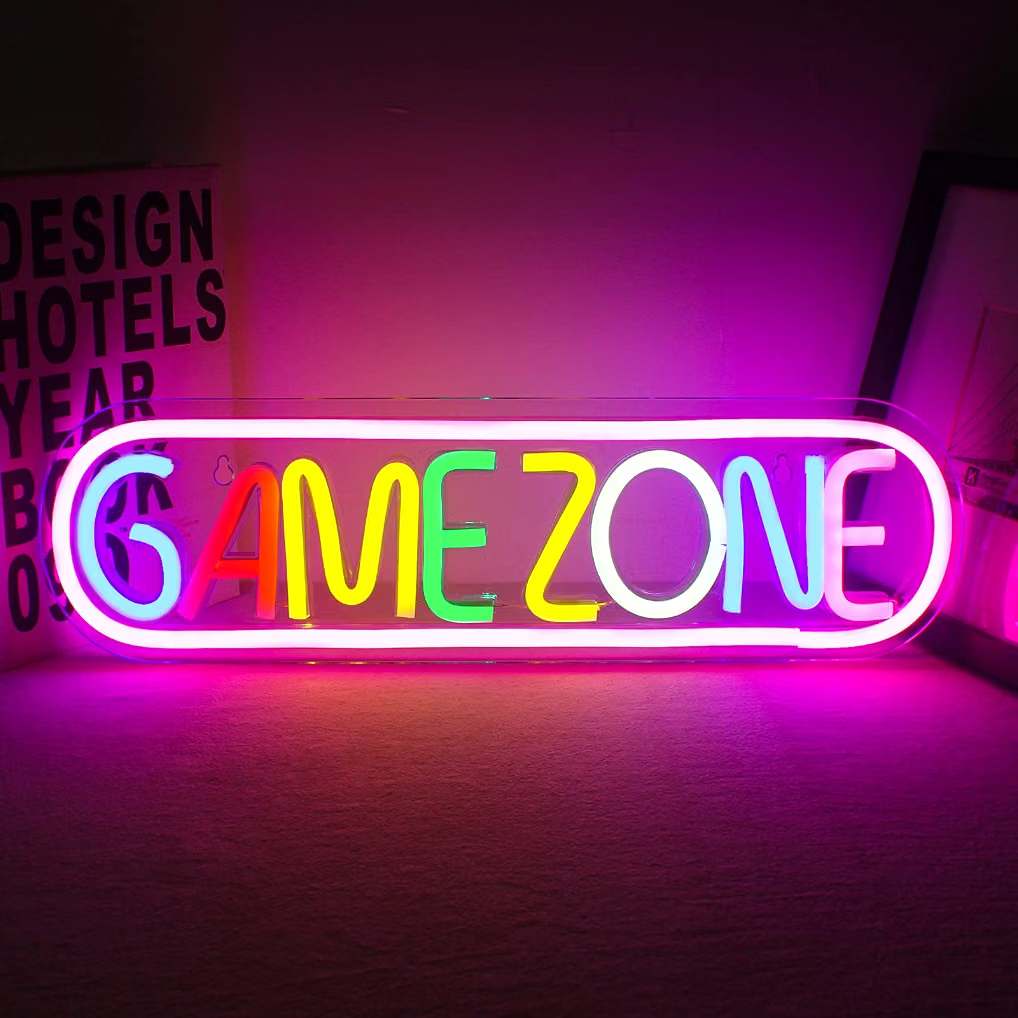
Amazon Find: Decorative Gaming Neon Signs
LED neon-style wall decorations can recreate the colorful appearance of a virtual gaming room in your own home.
4 Organize Gaming Accessories with a Headphone Pegboard
An organized gaming wall adds realism to your Sim’s computer station. Instead of placing every accessory directly on the desktop, introduce vertical storage for headphones and decorative gaming equipment.
Ravasheen’s Peg to Differ headphones are particularly suitable for creating a wall-mounted accessory display. Combine them with a compatible pegboard or position them beside the computer desk. Use a black pegboard for an industrial gaming setup, or choose white storage with pastel accessories for a lighter aesthetic.
Small-space tip: Place the display on a narrow section of wall beside the workstation. This leaves room for additional furniture in compact bedrooms and studio apartments.

Image credit: @wewantmods.com
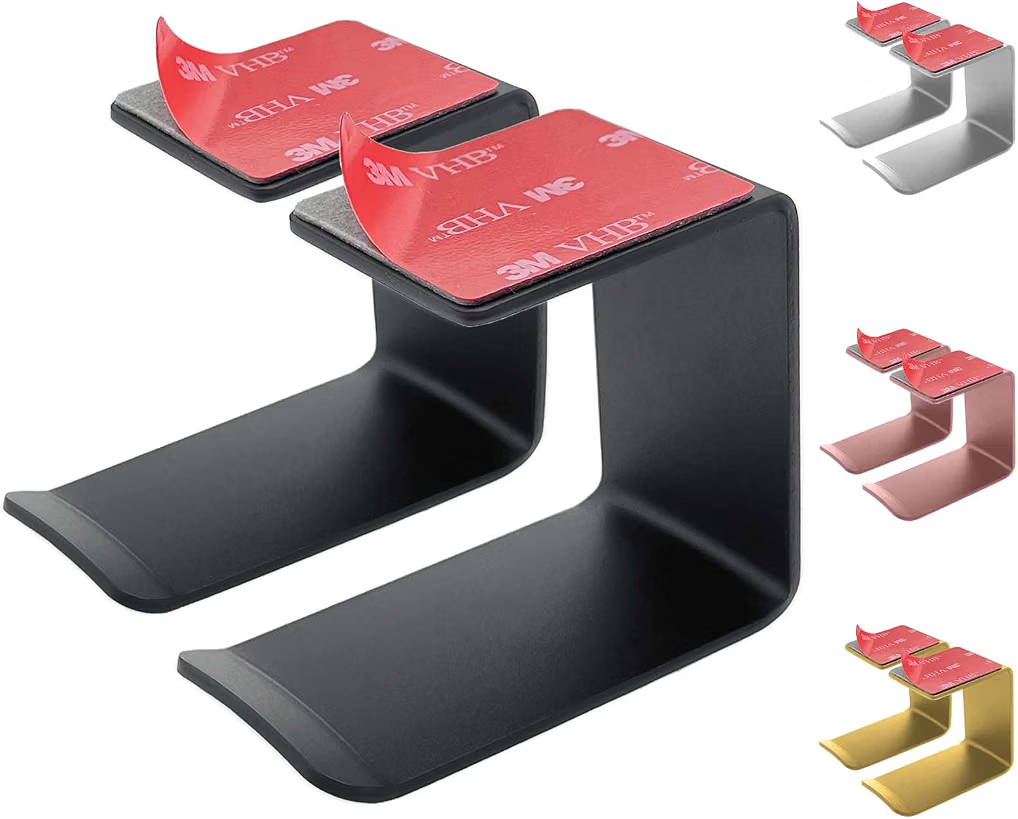
Amazon Find: Gaming Desk Pegboard Organizer
A physical pegboard provides dedicated storage for headphones, controllers, cables, and other lightweight desk accessories.
5 Create a Professional Corner Streaming Station
Give your aspiring celebrity Sim a dedicated studio that accommodates both gaming and video production. A large corner workstation provides separate areas for computer activities and recording equipment while making efficient use of the room’s layout.
The Video Station Desk by Bárbara Sims offers a functional furniture option for this type of build. Position the workstation against two adjoining walls and create a coordinated backdrop with decorative panels, shelves, and understated colored lighting. A dark wood desk and charcoal walls work particularly well for a professional studio appearance.
CC requirement: This video station requires The Sims 4: Get Famous expansion pack. Test its available interactions in Live Mode after placing it.
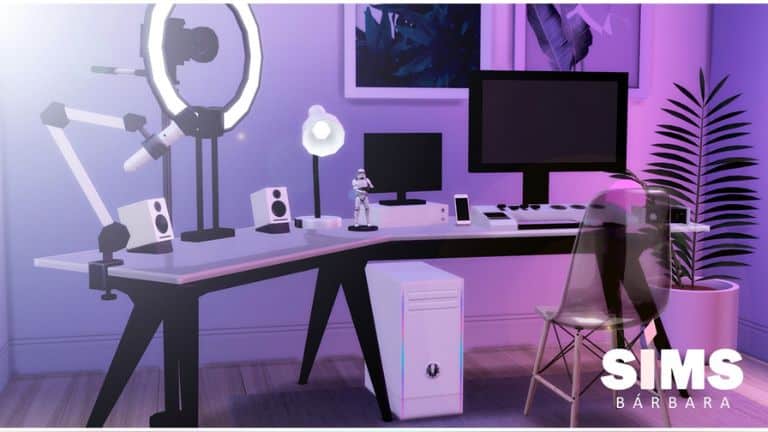
Image credit: @wewantmods.com
6 Build a Modern Triple-Monitor Gaming Battlestation
A triple-monitor gaming desk makes an impressive centerpiece in a modern Sims 4 entertainment room. This setup suits a Sim who enjoys competitive gaming, technology, or a futuristic interior style.
Start with a wide desk and use the multi-screen computer from the Gaming Room Set by NICKNAME_sims4. Arrange matching speakers around the computer and introduce subtle accessories, such as a headset and small decorative plant. Choose black and silver finishes for a professional battlestation, or white and pink for a softer interpretation.
Practical tip: Leave enough clear floor space around the chair. Multiple screens may form part of a single CC object, so do not assume that each screen has a separate gameplay function.
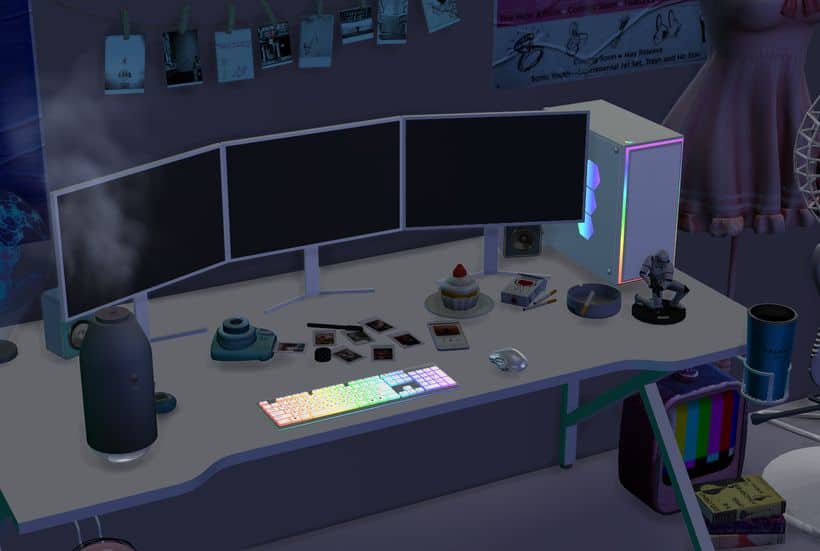
Image credit: @wewantmods.com
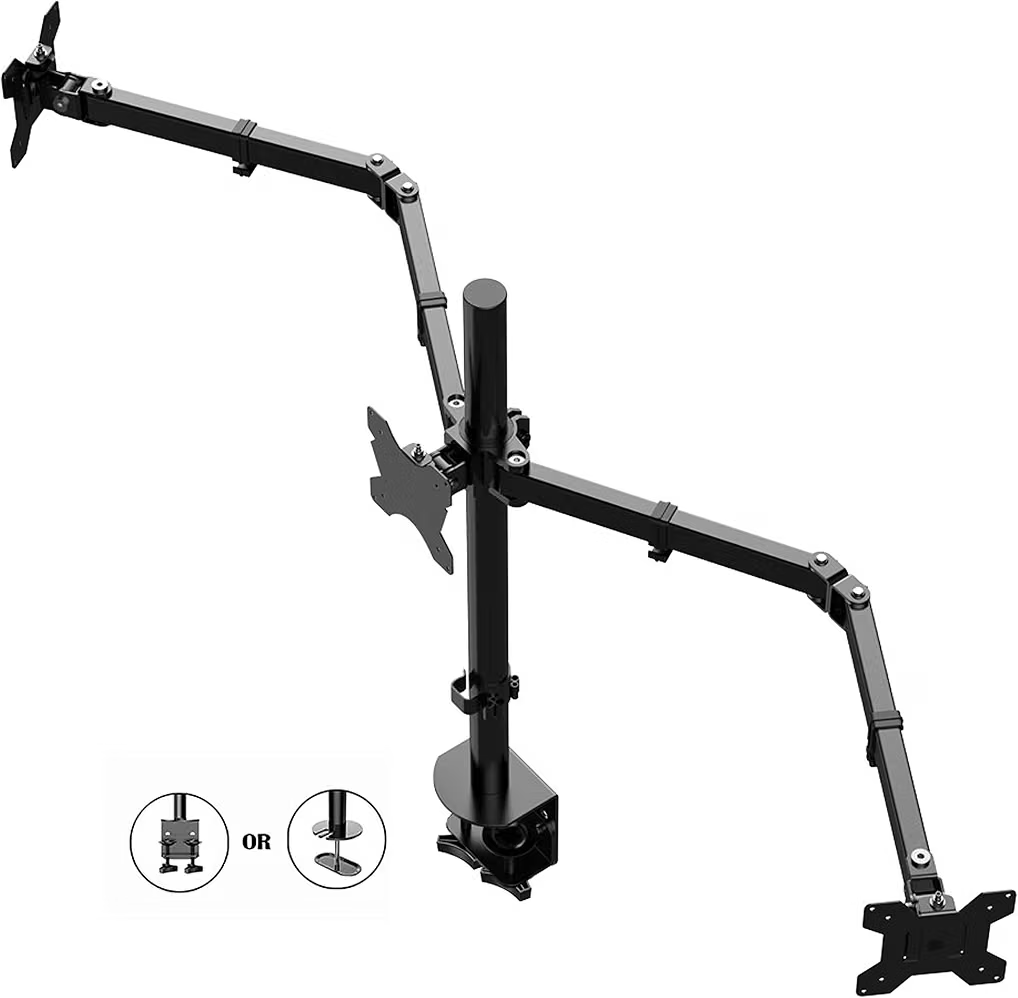
Amazon Find: Triple Monitor Desk Mount
A compatible multi-monitor mount can help recreate the streamlined look of a virtual triple-screen battlestation. Check monitor weight, mounting compatibility, and desk strength before purchasing.
7 Design a Cozy Pastel Geek Gaming Room
Combine the atmosphere of a cozy bedroom with playful gaming references for a room that feels both functional and charming. A long desktop supported by drawer units provides the foundation, while pastel accessories and decorative wall storage introduce personality.
The Perfect Night Geek Set by Syboubou works beautifully for this concept. Pair its coordinated furniture with a dual-display computer, a gaming-themed light, and character-shaped accessory stands. Arrange cube-shaped storage compartments above the workstation and add a soft rug beneath the chair.
Color suggestion: Blush pink, cream, lilac, and pale mint create an inviting gaming aesthetic that also complements a relaxing bedroom.
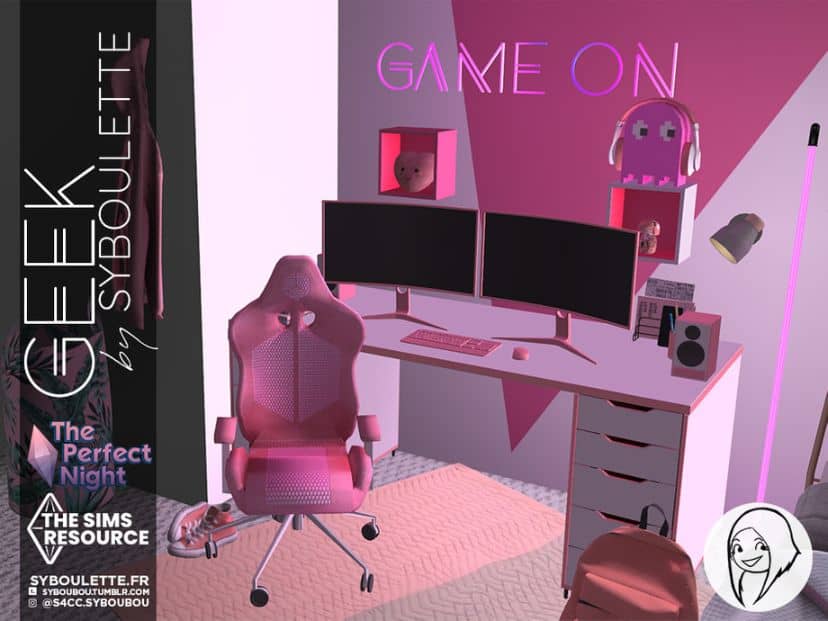
Image credit: @wewantmods.com
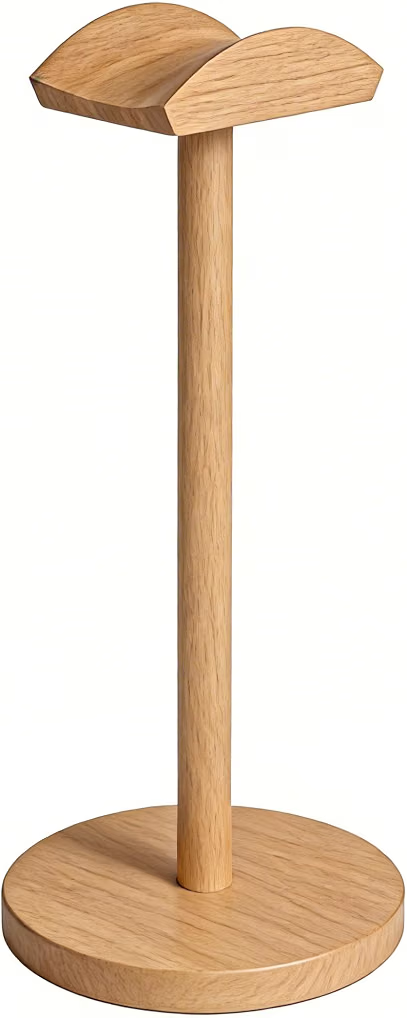
Amazon Find: Cute Gaming Headphone Stand
A playful headset stand adds character to a real gaming desk while providing a convenient place to store headphones.
8 Create a Compact Laptop Gaming Nook
Not every Sim needs a large gaming room filled with expensive-looking equipment. A compact laptop station is an attractive alternative for tiny homes, student bedrooms, and studio apartment builds.
Choose a colorful custom laptop by Giuliane and position it on a narrow desk beside a window. Add a comfortable chair, a small table lamp, and one or two decorative accessories. Natural wood furniture with sage-green or cream accents creates a relaxed gaming corner that can also serve as a study space.
Space-saving tip: Use a wall shelf instead of a floor-standing bookcase. Test whether your Sim can sit at the desk and use the laptop without nearby decorations interfering.
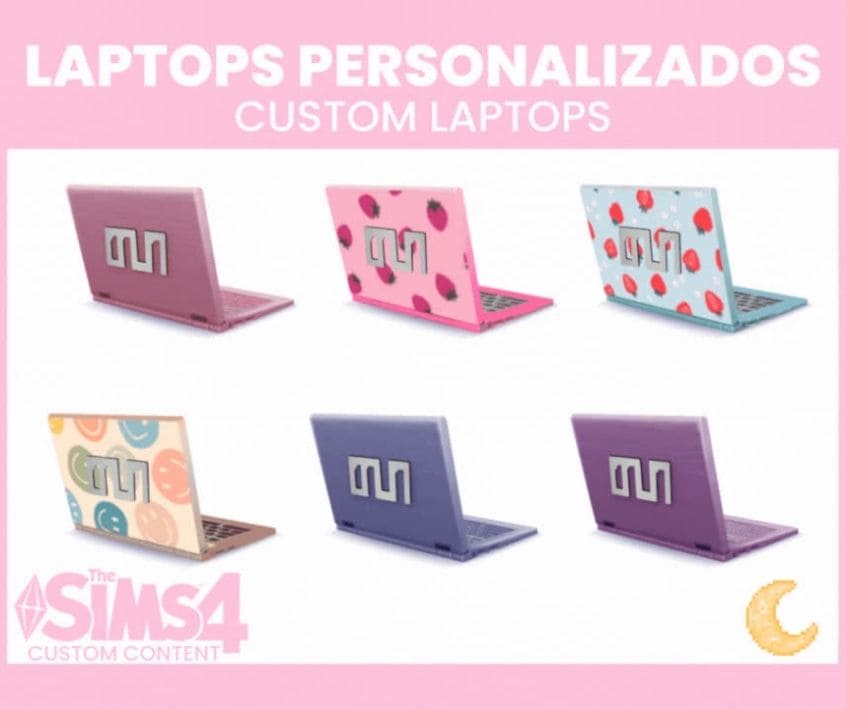
Image credit: @wewantmods.com
9 Fill the Room with Anime Collectibles and Gaming Clutter
Decorative clutter makes a Sims 4 gaming room feel like it belongs to a real gaming enthusiast. Personal collections, accessories, and miniature display pieces can introduce more character than an elaborate furniture arrangement alone.
Explore the individual gaming decorations created by Bknysimz for items that complement your chosen theme. Arrange anime-inspired objects and plush toys on open shelves, then add computer hardware decorations and a patterned mousepad around the workstation. Keep the larger furniture neutral to let the collection become the focal point.
Decorating tip: Group accessories according to color or theme. Leave gaps between collections and keep usable desk slots clear so the room remains attractive and functional.

Image credit: @wewantmods.com
10 Style a Dreamy White and Pink Aurora Gaming Setup
A white gaming workstation with soft pink accents creates a dreamy aesthetic that works beautifully in a feminine bedroom or dedicated gaming lounge. The appeal comes from coordinated accessories, smooth furniture finishes, and gentle ambient lighting.
Use the Aurora Gaming Set by DSCO for coordinated white gaming peripherals and computer accessories. Introduce pink through wall paint, lighting, cushions, and the surrounding furniture rather than expecting pink swatches from the CC set itself. A cloud-inspired wrist rest and matching headset complete the workstation.
Styling tip: Add a cream rug and a small pastel lamp to soften the room. Keep decorative accessories minimal for a clean, dreamy Pinterest-inspired appearance.
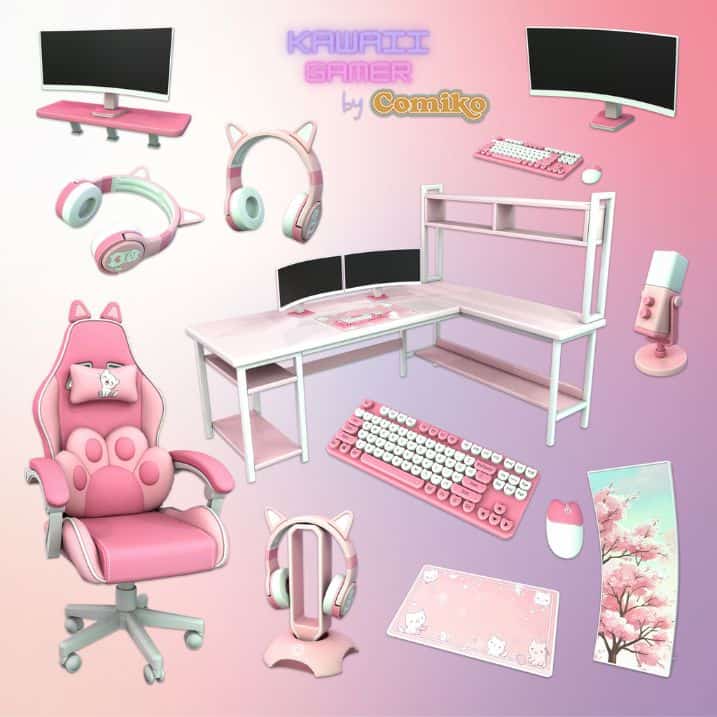
Image credit: @wewantmods.com
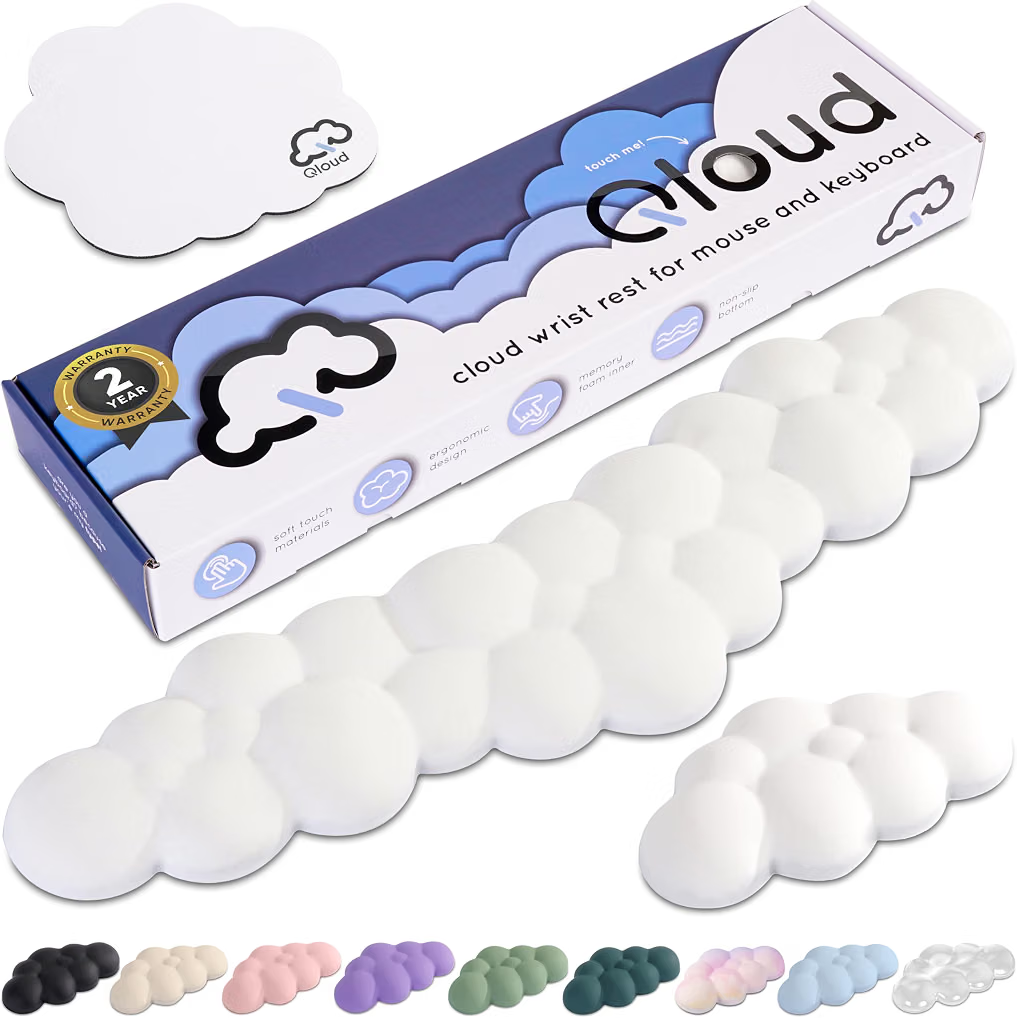
Amazon Find: Cloud-Shaped Keyboard Wrist Rest
A cloud-shaped wrist rest adds a playful finishing touch to a white, pink, or pastel gaming desk.
How to Download and Install Sims 4 Gaming Room CC
Custom content allows PC and Mac players to introduce community-created furniture, decorations, and gaming equipment into The Sims 4. Always download files from trusted creators and check their compatibility with your current game version.
- Choose the gaming room CC you want from the original creator’s download page.
- Check whether the content requires an expansion pack, additional mesh, or other files.
- Extract the downloaded archive if it is provided as a ZIP or RAR file.
- Move the appropriate package files into the Mods folder inside your Electronic Arts/The Sims 4 folder.
- Launch The Sims 4 and navigate to Game Options.
- Select Other and enable custom content and mods.
- Apply the changes and restart the game.
- Open Build/Buy Mode and locate your newly installed gaming furniture and accessories.
- Test functional objects in Live Mode before completing your build.
Important: Back up your saved games before installing or updating custom content. Game updates may disable mods or affect compatibility. Check the creator’s instructions and the official EA custom content installation guide if you experience problems.
Sims 4 Gaming Room CC Checklist
Use this checklist when downloading furniture and accessories for your next Sims 4 build. Start with the functional essentials before adding decorative clutter.
| CC Item | Best For | Priority |
|---|---|---|
| Gaming desk | Dedicated computer workstation | Essential |
| Gaming chair | Functional seating | Essential |
| Functional gaming computer | Video gaming interactions | Essential |
| Neon wall lights | Gaming atmosphere | Decorative |
| Decorative headphones | Realistic gaming accessories | Optional |
| Pegboard and wall shelves | Vertical storage displays | Recommended |
| Video recording station | Content creator gameplay | Optional, pack-dependent |
| Gaming rugs | Defining the gaming area | Decorative |
| Anime figures and plushies | Personalized room themes | Decorative |
| Keyboard and mouse accessories | Detailed workstation styling | Optional |
Best Color Combinations for Sims 4 Gaming Rooms
Choosing a color palette before downloading CC makes it easier to create a coordinated gaming room. Try one of these combinations for your next build.
Dreamy Kawaii Gaming Room
Blush pink, ivory, lavender, and powder blue. Pair white furniture with colorful plushies, adorable wall decorations, and pastel gaming accessories.
Futuristic RGB Gaming Room
Matte black, electric purple, cyan, and magenta. Use dark furniture, multi-monitor computers, and illuminated wall decorations for a futuristic battlestation.
Cozy Nature-Inspired Gaming Nook
Sage green, beige, natural oak, and warm cream. Combine wooden furniture with indoor plants, simple computer equipment, and soft ambient lighting.
Minimalist Modern Battlestation
White, silver, graphite, and ice blue. Choose streamlined furniture, coordinated monitors, and minimal accessories for a clean professional setup.
How to Create a Sims 4 Gaming Room Without CC
You can still design an attractive gaming room using official Build/Buy Mode furniture without downloading third-party custom content. This approach is particularly useful for console players and anyone who prefers to keep their game free of mods.
- Choose a simple computer desk from your available furniture catalog.
- Place a functional computer and compatible desk chair.
- Create an accent wall using dark paint, pastel wallpaper, or contrasting wall finishes.
- Arrange available lamps and wall lights around the gaming area.
- Use shelves, books, plants, and collectibles as gaming room decorations.
- Place a rug underneath the workstation to separate it from the sleeping area.
- Add a sofa and compatible television for a separate entertainment corner.
- Use matching furniture swatches to create a coordinated color palette.
You can also explore the in-game Gallery for gaming room builds. Check the listed pack requirements and choose builds that use content available in your game.
Common Sims 4 Gaming Room Building Mistakes
- Downloading incompatible CC: Check the creator’s requirements and current game compatibility before installing new furniture.
- Overcrowding the gaming desk: Excessive decorative objects can interfere with functional computer interactions.
- Blocking your Sim’s movement: Leave accessible space around chairs, desks, doorways, and other furniture.
- Confusing decorative and functional computers: Some realistic-looking CC objects are purely decorative and cannot be used for gaming.
- Using too many neon colors: Limit the main lighting palette to a few complementary shades for a more coordinated appearance.
- Ignoring expansion pack requirements: Certain gaming chairs, recording stations, and other objects require specific packs.
- Downloading unnecessary duplicates: Organize your CC files by creator or collection to make troubleshooting easier.
- Saving before checking missing CC: After a game update, confirm that your custom content is enabled and working before saving an affected household or build.
- Downloading from suspicious websites: Use trusted creator pages and avoid misleading download buttons or unexpected executable files.
Frequently Asked Questions
1. What is Sims 4 gaming room CC?
Sims 4 gaming room CC refers to community-created custom content used to decorate virtual gaming spaces. It can include gaming desks, computer monitors, chairs, neon lights, headphones, keyboards, shelving, and decorative accessories. Some objects support gameplay interactions, while others are designed exclusively for decoration.
2. Where can I find Sims 4 gaming room custom content?
Many Sims 4 creators distribute their custom content through Patreon, The Sims Resource, Tumblr, and their own websites. Creators such as Syboubou, Ravasheen, NICKNAME_sims4, Desimny, and DSCO offer gaming-related items. Always check the original creator’s page for download instructions and compatibility information.
3. Can my Sim actually play games on custom gaming computers?
Yes, provided the custom computer is designed as a functional object and is compatible with your game. Some gaming computer CC is purely decorative, so check the creator’s description before downloading. Test the computer in Live Mode to confirm that gaming interactions are available.
4. Can I install Sims 4 gaming room CC on PlayStation or Xbox?
Third-party mods and custom content installed through the Mods folder are supported on PC and Mac, not PlayStation or Xbox. Console players can recreate similar gaming room aesthetics using official furniture, available packs, lighting items, and compatible Gallery builds.
5. How can I make my Sims 4 gaming room look more realistic?
Begin with a believable furniture layout and add accessories gradually. Coordinated monitors, decorative cables, headphones, desk mats, shelving, and subtle lighting can make a gaming setup look more realistic. Include personal details such as plants, framed artwork, or collectibles while keeping the functional workstation accessible.
Recommended Amazon Finds for a Real-Life Sims-Inspired Gaming Room
Love the look of your Sim’s gaming setup? These physical gaming accessories can help you recreate a similar aesthetic in your own bedroom or home office.
- Pastel Mechanical Gaming Keyboard: Introduce a coordinated splash of color to a kawaii or minimalist gaming workstation.
- RGB Gaming Wall Light Panels: Create an illuminated feature wall inspired by colorful Sims 4 gaming room builds.
- Oversized Kawaii Gaming Desk Mat: Bring together your keyboard, mouse, and desktop accessories with an adorable coordinated design.
Final Thoughts
The best Sims 4 gaming room ideas reflect your Sim’s personality while creating a comfortable and functional entertainment area. From anime-inspired pastel bedrooms and neon gaming stations to professional streaming studios and minimalist laptop corners, custom content offers plenty of opportunities to experiment with different interior styles.
Start with a functional desk, chair, and computer, then choose a color palette and gradually introduce gaming accessories. Download compatible CC from trusted creators, test your finished room in Live Mode, and enjoy building a personalized gaming retreat for your favorite Sim.

Our guides are researched, fact-checked and updated as games change. How we research and verify our guides.