
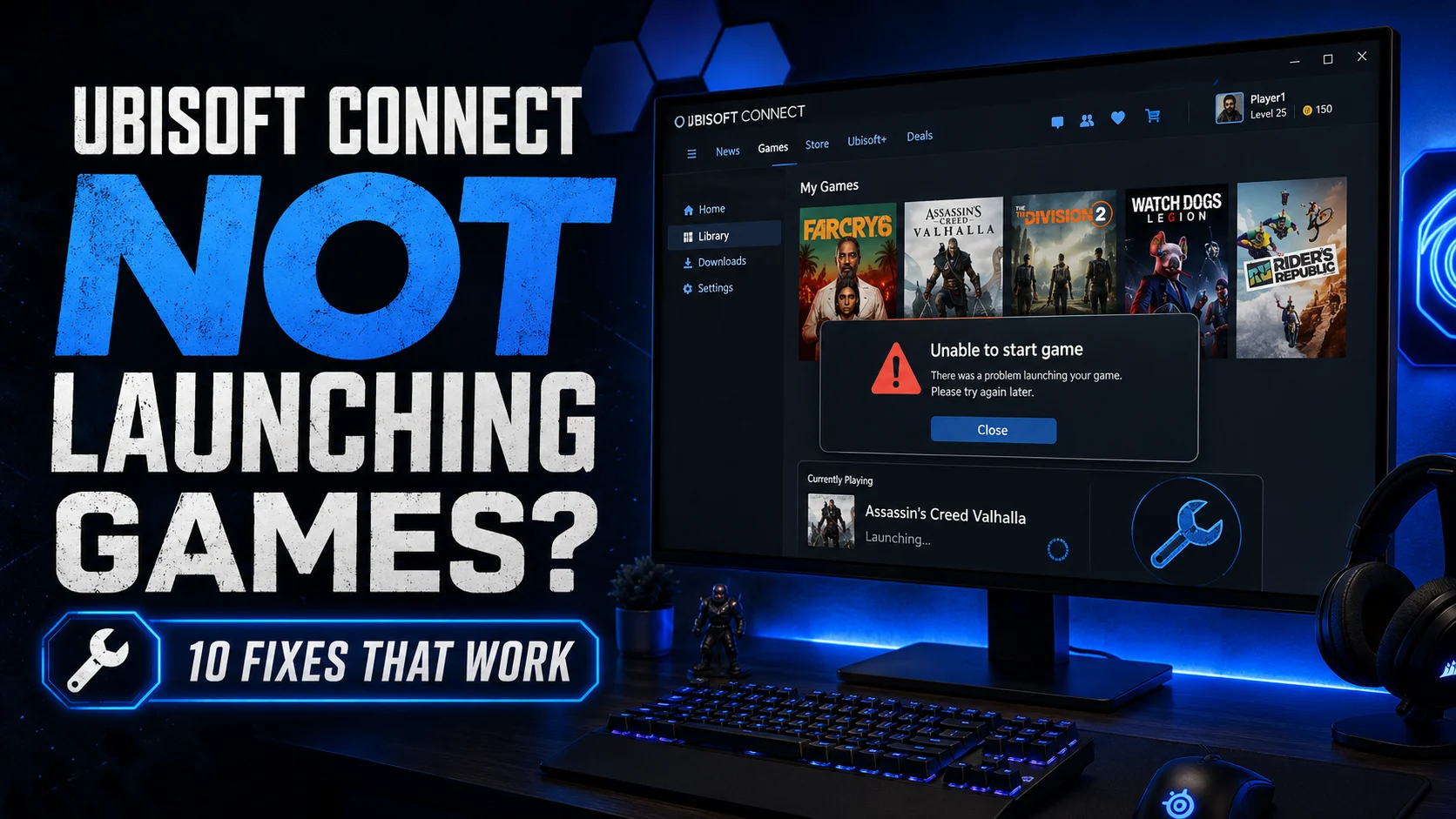

Is Ubisoft Connect not launching games on your PC, even though the launcher opens normally? This can happen with Assassin’s Creed, Rainbow Six Siege, Far Cry, The Crew, Watch Dogs, Avatar: Frontiers of Pandora, Prince of Persia, XDefiant, and many older Ubisoft games that still rely on Ubisoft Connect PC.
Sometimes the game says “Unable to start game”. Sometimes Ubisoft Connect opens, flashes for a second, then nothing happens. In other cases, the game is missing from your library, stuck on launching, or keeps sending you back to Steam, Epic Games, or Ubisoft Connect without actually starting.
The good news is that this problem is usually fixable. Most Ubisoft Connect launch issues come from a stuck launcher process, missing permissions, corrupted game files, a broken cache, account-linking problems, overlay conflicts, antivirus blocking, or an outdated Ubisoft Connect installation.
Why Ubisoft Connect Opens But Games Do Not Launch
Ubisoft Connect is not just a store launcher. It also handles game ownership, cloud saves, achievements, overlay features, updates, account linking, and DRM checks. If one of those pieces fails, the launcher may open fine but the game will not start.
Common causes include:
- Ubisoft Connect PC is stuck in the background.
- The game does not have administrator permission.
- Game files are corrupted or missing.
- You are logged into the wrong Ubisoft account.
- The game is linked through Steam or Epic Games but the account link is broken.
- The Ubisoft Connect overlay is causing a launch conflict.
- Antivirus or firewall is blocking Ubisoft Connect or the game.
- A VPN, proxy, or network filter is interfering with Ubisoft services.
- Background apps like MSI Afterburner, RivaTuner, Discord overlay, or Overwolf are conflicting.
- Ubisoft Connect PC is outdated or damaged.
Ubisoft Connect Not Launching Games: Quick Fix Table
| Problem | Best Fix |
|---|---|
| Game does nothing after clicking Play | End Ubisoft tasks, restart PC, and run as administrator |
| Game stuck on launching | Verify game files and disable background apps |
| “Unable to start game” error | Restart Ubisoft Connect and locate/verify the installed game |
| Game missing from library | Check the Ubisoft account and clear Ubisoft Connect cache |
| Game launches then closes | Disable overlay, update GPU driver, and check antivirus |
Fix 1: Restart Ubisoft Connect PC Properly
Ubisoft’s own help page for the “Unable to start game” or “Unable to locate game” error recommends restarting Ubisoft Connect PC first. This is worth doing because the launcher can get stuck in the background even after you close the visible window.
Follow these steps:
- Close Ubisoft Connect PC.
- Click the small arrow in the Windows system tray.
- Right-click the Ubisoft Connect icon and select Quit or Exit.
- Press Ctrl + Shift + Esc to open Task Manager.
- Look for Ubisoft-related processes.
- End tasks such as:
- Ubisoft Connect
- UbisoftConnect.exe
- Ubisoft Game Launcher
- upc.exe
- Restart your PC.
- Open Ubisoft Connect PC again and launch the game.
If the game starts after this, the problem was a stuck launcher process.
Fix 2: Run Ubisoft Connect and the Game as Administrator
Some Ubisoft games need permission to write config files, launch anti-cheat services, update files, or access protected folders. If Windows blocks those actions, the game may not start.
Run Ubisoft Connect as administrator:
- Close Ubisoft Connect PC completely.
- Right-click the Ubisoft Connect shortcut.
- Select Run as administrator.
- Click Yes when Windows asks for permission.
- Try launching the game again.
If that works, make it permanent:
- Right-click the Ubisoft Connect shortcut.
- Select Properties.
- Open the Compatibility tab.
- Check Run this program as an administrator.
- Click Apply, then OK.
Also Run the Game EXE as Administrator
If only one Ubisoft game will not launch, set the game’s executable to run as administrator too.
- Open the game’s installation folder.
- Find the main .exe file.
- Right-click it and select Properties.
- Open the Compatibility tab.
- Check Run this program as an administrator.
- Click Apply, then OK.
Fix 3: Verify the Game Files
Corrupted or missing files are one of the most common reasons Ubisoft Connect games fail to launch. Ubisoft’s PC troubleshooting guidance recommends verifying game files when a game has technical issues.
To verify files in Ubisoft Connect PC:
- Open Ubisoft Connect PC.
- Go to your Library.
- Select the game that will not launch.
- Open the game’s properties or manage menu.
- Choose Verify files.
- Wait for the scan to finish.
- Download any missing or repaired files.
- Restart Ubisoft Connect and launch the game.
If you bought the game through Steam or Epic Games, verify the files in that launcher too. Ubisoft games from Steam or Epic may still need Ubisoft Connect to run, so both launchers need to agree that the files are valid.
For similar launcher repair steps, you can read our guide on Steam game not launching fixes and Epic Games Launcher not opening fixes.
Fix 4: Make Sure You Are Using the Right Ubisoft Account
This is easy to miss. Ubisoft games are tied to the Ubisoft account where the game was activated. If you log into a different Ubisoft account, the game may not appear, may ask for activation, or may refuse to launch.
Check these points:
- Are you signed into the Ubisoft account that owns the game?
- Did you buy the game on Steam, Epic Games, or Ubisoft Store?
- Did you link the correct Steam or Epic account to Ubisoft?
- Is the game hidden by library filters?
- Are you using a different old Ubisoft account by mistake?
If the game is missing from Ubisoft Connect PC, Ubisoft’s help page recommends checking whether the game was redeemed on the correct Ubisoft account and also mentions the Ubisoft Connect PC cache folder as a possible cause of library display issues.
Fix 5: Disable the Ubisoft Connect Overlay
The Ubisoft Connect overlay can sometimes conflict with games, especially if you also use overlays from Steam, Discord, NVIDIA, AMD, Xbox Game Bar, MSI Afterburner, or RivaTuner.
To disable the Ubisoft Connect overlay:
- Open Ubisoft Connect PC.
- Click the menu icon in the top-left corner.
- Open Settings.
- Go to General.
- Turn off the in-game overlay option for supported games.
- Restart Ubisoft Connect PC.
- Launch the game again.
Ubisoft’s overlay troubleshooting page recommends updating Ubisoft Connect PC and checking overlay-related conflicts when overlay features do not work correctly.
Fix 6: Disable Conflicting Background Apps
Ubisoft’s troubleshooting pages often recommend disabling background applications when diagnosing Ubisoft Connect and game issues. Background tools can hook into games, inject overlays, control RGB, monitor FPS, or filter network traffic.
Temporarily close:
- Discord overlay
- Steam overlay
- Epic Games overlay
- Xbox Game Bar
- NVIDIA overlay
- AMD overlay
- MSI Afterburner
- RivaTuner Statistics Server
- Overwolf
- VPN apps
- Proxy tools
- Game boosters
- RGB control apps
Then restart your PC and test the game again. If it launches, reopen your background apps one by one until you find the conflict.
Fix 7: Allow Ubisoft Connect Through Antivirus and Firewall
Security software can block Ubisoft Connect from launching games, connecting to Ubisoft services, updating files, or verifying ownership. Ubisoft’s connectivity guidance recommends checking security software if Ubisoft Connect PC has connectivity issues.
Test carefully:
- Close Ubisoft Connect PC.
- Temporarily disable third-party antivirus only for testing.
- Open Ubisoft Connect as administrator.
- Launch the game.
- If it works, add Ubisoft Connect and the game to your antivirus allowlist.
- Turn antivirus protection back on.
You may need to allow:
- UbisoftConnect.exe
- upc.exe
- UbisoftGameLauncher.exe
- The game’s main .exe file
- The Ubisoft Connect installation folder
- The folder where your Ubisoft games are installed
Allow Ubisoft Connect Through Windows Firewall
- Open Windows Security.
- Go to Firewall & network protection.
- Click Allow an app through firewall.
- Click Change settings.
- Allow Ubisoft Connect and the game on your current network type.
Fix 8: Clear the Ubisoft Connect PC Cache
A corrupted Ubisoft Connect cache can cause library problems, login issues, games not appearing, and launcher behavior that does not match your actual game files.
Ubisoft’s help page for games not appearing in Ubisoft Connect PC mentions the Ubisoft Connect PC cache folder as part of troubleshooting. Clearing the cache is safe when done carefully because Ubisoft Connect can rebuild temporary files.
Here is the safe way to do it:
- Close Ubisoft Connect PC completely.
- Open Task Manager and end Ubisoft-related processes.
- Open File Explorer.
- Go to the Ubisoft Connect installation folder. Common location:
C:\Program Files (x86)\Ubisoft\Ubisoft Game Launcher- Find the folder named cache.
- Rename it to cache_backup.
- Restart your PC.
- Open Ubisoft Connect PC again.
Renaming the folder is better than deleting it immediately because you have a backup if something does not work as expected.
Fix 9: Update Windows and Your Graphics Driver
If the game opens for a second and closes, crashes before the menu, or never shows a window, the issue may be related to Windows, DirectX, Visual C++, or your graphics driver.
Update Windows first:
- Press Windows + I.
- Go to Windows Update.
- Click Check for updates.
- Install all available updates.
- Restart your PC.
Then update your GPU driver from the official source:
- NVIDIA: GeForce Game Ready Driver
- AMD: AMD Software: Adrenalin Edition
- Intel: Intel Arc or Iris Xe graphics driver
After updating, restart the PC again before testing the game.
Fix 10: Reinstall Ubisoft Connect PC
If Ubisoft Connect itself is damaged, reinstalling it can fix missing launcher files, broken updates, and startup problems. Ubisoft’s reinstall guidance says an outdated version of the desktop app may cause issues with game downloads and recommends reinstalling Ubisoft Connect PC when needed.
To reinstall Ubisoft Connect PC:
- Close Ubisoft Connect PC.
- Press Windows + I.
- Go to Apps.
- Open Installed apps.
- Find Ubisoft Connect.
- Select Uninstall.
- Restart your PC.
- Download the latest Ubisoft Connect PC installer from Ubisoft’s official website.
- Install it again.
- Sign in with the Ubisoft account that owns your games.
Before uninstalling, note where your Ubisoft games are installed. You may need to locate them again after reinstalling the launcher.
What If Ubisoft Connect Says “Unable to Start Game”?
If you see “Unable to start game” or “Unable to locate game”, use this order:
- Restart Ubisoft Connect PC.
- Restart your PC.
- Make sure the game is still installed in the correct folder.
- Use the option to locate the installed game if Ubisoft Connect asks for it.
- Verify game files.
- Run Ubisoft Connect as administrator.
- Check antivirus and firewall blocks.
This error often appears when Ubisoft Connect cannot find the installed game files or cannot start the game from the expected location.
What If the Game Was Bought on Steam or Epic Games?
Many Ubisoft games bought on Steam or Epic Games still launch through Ubisoft Connect. That means three things must work together:
- The store launcher where you bought the game
- Ubisoft Connect PC
- The Ubisoft account linked to that purchase
If the game was bought on Steam:
- Close Steam and Ubisoft Connect completely.
- Restart your PC.
- Open Steam as administrator.
- Verify the game files in Steam.
- Open Ubisoft Connect and make sure the correct account is signed in.
- Launch the game from Steam.
If the game was bought on Epic Games:
- Close Epic Games Launcher and Ubisoft Connect from the system tray.
- Restart your PC.
- Open Epic Games Launcher as administrator.
- Open Ubisoft Connect and sign into the correct account.
- Launch the game from Epic.
Ubisoft’s login troubleshooting page specifically mentions closing Epic Games Launcher and Ubisoft Connect PC from the system tray before trying to launch an Epic-linked game again.
Best Fix Order for Most Players
| Step | Fix | Why It Helps |
|---|---|---|
| 1 | Restart Ubisoft Connect and PC | Clears stuck launcher processes |
| 2 | Run as administrator | Fixes permission-related launch issues |
| 3 | Verify game files | Repairs missing or corrupted game files |
| 4 | Check Ubisoft account | Fixes ownership and linked-account problems |
| 5 | Disable overlay/background apps | Removes launch conflicts |
| 6 | Clear cache or reinstall Ubisoft Connect | Fixes damaged launcher data |
Read More
Related troubleshooting guides from StealthyGaming:
Final Thoughts
If Ubisoft Connect is not launching games, do not start by reinstalling everything. First, restart Ubisoft Connect properly, end stuck background processes, run the launcher as administrator, and verify the game files. These steps fix many cases where the game does nothing after clicking Play.
If the issue continues, check whether you are signed into the correct Ubisoft account, disable the Ubisoft overlay, close background apps, allow Ubisoft Connect through antivirus and firewall, and clear the Ubisoft Connect cache.
For Steam or Epic purchases, remember that the original store launcher and Ubisoft Connect both need to work. If one launcher is signed into the wrong account or stuck in the system tray, the game may not launch.
FAQs
Why is Ubisoft Connect not launching my game?
Ubisoft Connect may not launch your game because of a stuck background process, missing administrator permission, corrupted game files, wrong Ubisoft account, overlay conflict, antivirus block, cache issue, or a broken Steam/Epic account link.
How do I fix Ubisoft Connect stuck on launching?
Close Ubisoft Connect from the system tray, end Ubisoft tasks in Task Manager, restart your PC, run Ubisoft Connect as administrator, verify the game files, and disable overlays or background apps.
Why does Ubisoft Connect say “Unable to start game”?
This error usually means Ubisoft Connect cannot start or locate the installed game properly. Restart Ubisoft Connect, check the game install location, verify files, and run the launcher as administrator.
Does clearing Ubisoft Connect cache delete my games?
No. Clearing or renaming the Ubisoft Connect cache folder should not delete installed games. It removes temporary launcher files that Ubisoft Connect can rebuild.
Why is my Ubisoft game missing from the library?
Your game may be missing because you are signed into the wrong Ubisoft account, the game was redeemed on another account, your Steam/Epic account is not linked correctly, or Ubisoft Connect cache/library data is not loading properly.
Should I reinstall Ubisoft Connect PC?
Reinstall Ubisoft Connect PC only after trying easier fixes like restarting the launcher, running as administrator, verifying game files, checking your account, disabling overlays, and clearing cache.
Do Ubisoft games from Steam or Epic still need Ubisoft Connect?
Yes, many Ubisoft games bought through Steam or Epic Games still require Ubisoft Connect PC to launch, verify ownership, sync saves, and connect to Ubisoft services.
Sources Checked
- Ubisoft Help: “Unable to start game” / “Unable to locate game”
- Ubisoft Help: Troubleshooting technical issues on PC
- Ubisoft Help: Troubleshooting Ubisoft Connect PC overlay issues
- Ubisoft Help: Troubleshooting connectivity issues with Ubisoft Connect PC
- Ubisoft Help: Game not appearing in Ubisoft Connect PC
- Ubisoft Help: Installing or reinstalling Ubisoft Connect PC
- Ubisoft Help: Troubleshooting login issues in Ubisoft Connect PC

Abhigyan identifies himself as a tech geek, gaming cognoscenti, and also a connoisseur of music. Unidentified and mysterious phenomena never fail to gather his undivided attention. When not reading about bizarre and perplexing entities across the Universe, he can often be found cheering for his favorite teams in Football.