
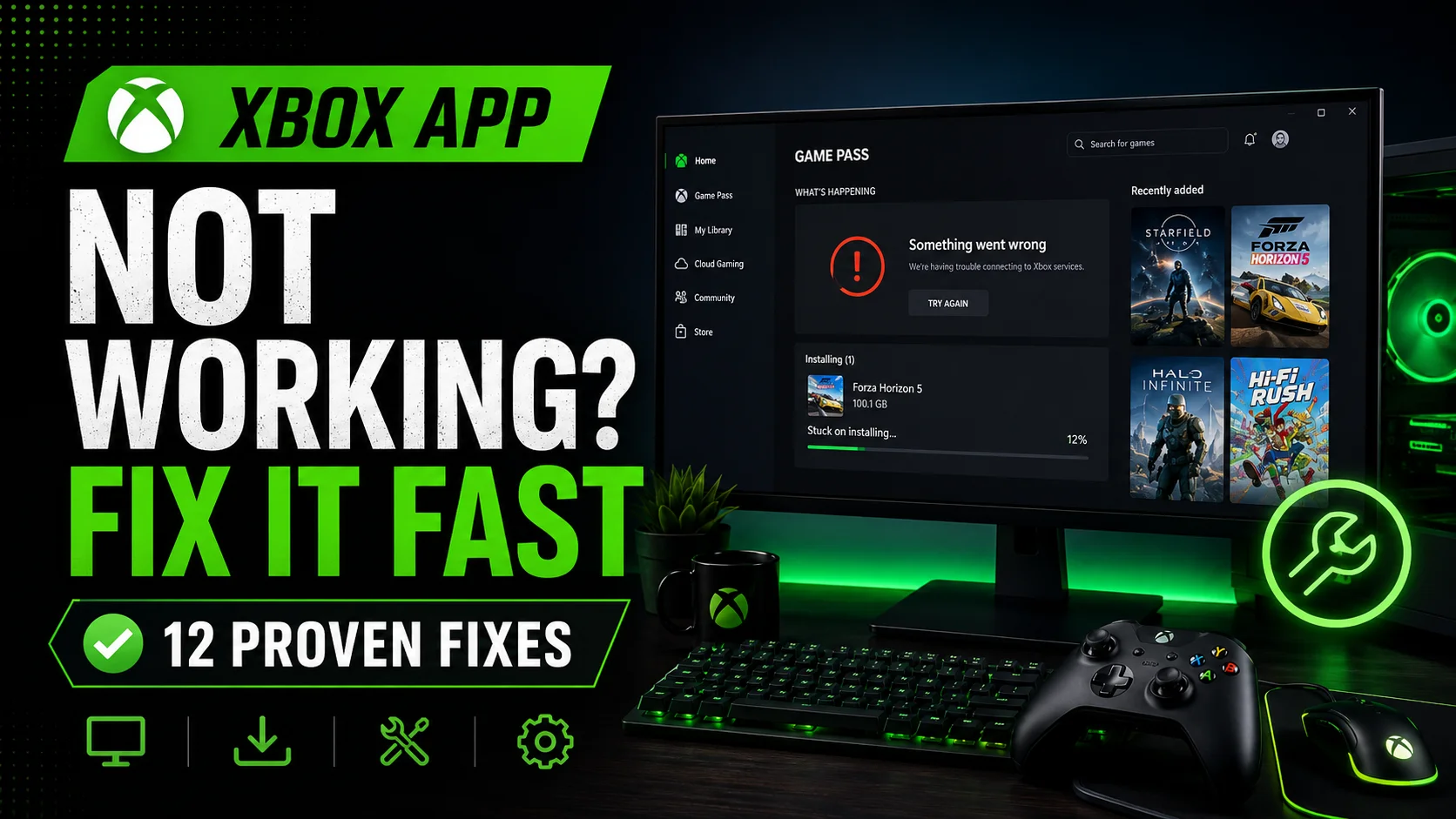

Is the Xbox app for PC not working, not opening, stuck loading, refusing to install games, or not showing your Game Pass subscription? This is a common issue on Windows 10 and Windows 11, especially after a Windows update, Xbox app update, Microsoft Store issue, Gaming Services error, or account mismatch.
The Xbox app is required for PC Game Pass, cloud gaming access, game installs, party chat, Xbox friends, and many Xbox features on Windows. When it breaks, you may see errors like games not downloading, install buttons doing nothing, Game Pass not detected, Gaming Services missing, or the app closing as soon as it opens.
The good news is that most Xbox app problems can be fixed without resetting your whole PC. Start with the simple fixes below, then move to the deeper repair steps if the app still does not work.
Why Is the Xbox App for PC Not Working?
The Xbox app depends on several Windows components. It is not just one standalone app. It works with the Microsoft Store, Gaming Services, your Microsoft account, Xbox services, Windows updates, storage permissions, and sometimes third-party launchers like EA App, Ubisoft Connect, Battle.net, or Riot Client.
That is why the app can break in different ways. Here are the most common causes:
- Windows is outdated.
- The Xbox app or Microsoft Store is outdated.
- Gaming Services is broken or missing.
- You are signed into different accounts in Xbox app and Microsoft Store.
- Your PC is in Windows S mode.
- Antivirus or firewall software is blocking installs or launches.
- The Xbox app cache is corrupted.
- The Microsoft Store cache is broken.
- Your install drive is not compatible or has permission issues.
- There is not enough free storage.
- Xbox services are down.
- A Game Pass game requires another launcher that is not set up correctly.
Xbox App for PC Not Working: Quick Fix Table
| Problem | Best Fix |
|---|---|
| Xbox app will not open | Repair or reset the Xbox app from Windows Settings |
| Xbox app stuck loading | Update Microsoft Store and restart Gaming Services |
| Game Pass not showing | Use the same Microsoft account in Xbox app and Microsoft Store |
| Games will not install | Run Gaming Services Repair Tool |
| Download stuck or install button does nothing | Clear Microsoft Store cache with WSReset |
| Games crash or fail to launch | Update Windows, GPU drivers, and check antivirus |
Fix 1: Check Xbox Server Status
Before changing settings on your PC, check whether Xbox services are down. If Xbox sign-in, Game Pass, store purchases, cloud gaming, or game downloads are having issues, the Xbox app may not work properly even if your PC is fine.
Check the Xbox status page and look for problems with:
- Account and profile
- Store and subscriptions
- Cloud gaming
- Games and gaming
- PC Game Pass services
If Xbox services are down, wait until Microsoft fixes the issue. If everything looks normal, continue with the steps below.
Fix 2: Restart Your PC and Relaunch the Xbox App
This sounds simple, but it is still the best first step. The Xbox app can get stuck because of background services, Microsoft Store processes, or unfinished game updates.
Do this first:
- Close the Xbox app.
- Press Ctrl + Shift + Esc to open Task Manager.
- End any Xbox, Gaming Services, or Microsoft Store processes if they are stuck.
- Restart your PC.
- Open the Xbox app again.
If the app was frozen in the background, this may fix it immediately.
Fix 3: Make Sure Windows Is Updated
The Xbox app for PC needs a modern version of Windows. Microsoft lists Windows 10/11 version 22H2 or higher for the Xbox PC app experience. Some Xbox app and Game Bar features also require Windows 10 22H2 or newer.
To update Windows:
- Press Windows + I.
- Go to Windows Update.
- Click Check for updates.
- Install all available updates.
- Restart your PC.
To check your Windows version:
- Press Windows + R.
- Type winver.
- Press Enter.
- Check whether you are on Windows 10/11 version 22H2 or newer.
Fix 4: Update the Xbox App and Microsoft Store
The Xbox app works closely with the Microsoft Store. If one is outdated, Game Pass games may not install, update, or launch correctly.
Update Microsoft Store apps like this:
- Open Microsoft Store.
- Click Library in the lower-left corner.
- Click Get updates.
- Install updates for:
- Xbox
- Gaming Services
- Microsoft Store
- Game Bar
- Restart your PC.
After updating, open the Xbox app again and test whether it works.
Fix 5: Sign Into the Same Microsoft Account Everywhere
This is one of the most common reasons PC Game Pass does not work. You may be signed into one Microsoft account in the Xbox app and another account in Microsoft Store.
If that happens, the Xbox app may not detect your Game Pass subscription, purchased games, or install permissions.
Check both apps:
- Open the Xbox app.
- Click your profile icon.
- Confirm the Microsoft account.
- Open Microsoft Store.
- Click the profile icon.
- Confirm the account there too.
- If they are different, sign out and sign into the same account in both apps.
After doing this, close both apps, restart your PC, and open Xbox app again.
Fix 6: Repair or Reset the Xbox App
If the Xbox app opens slowly, crashes, shows a blank screen, or refuses to load your library, repair it from Windows Settings.
To repair the Xbox app:
- Press Windows + I.
- Go to Apps.
- Open Installed apps.
- Find Xbox.
- Click the three dots next to it.
- Select Advanced options.
- Click Repair.
After repairing, open the app and test it.
If Repair does not help, use Reset from the same page. Resetting the app clears its local data and signs you out, but it does not delete your Microsoft account or installed games by itself.
Fix 7: Run the Gaming Services Repair Tool
Gaming Services is one of the most important parts of Xbox gaming on Windows. When it breaks, Xbox app installs can fail, games may not launch, and Game Pass may act like it is not working.
Microsoft provides a Gaming Services Repair Tool inside the Xbox app.
To run it:
- Open the Xbox app.
- Click your profile picture.
- Select Support.
- Choose Gaming Services Repair Tool.
- Click Start Troubleshooting.
- Follow the on-screen instructions.
- Restart your PC after the repair finishes.
If your Xbox app will not open at all, update Gaming Services from Microsoft Store first, then try the Xbox app again.
Fix 8: Clear the Microsoft Store Cache with WSReset
If Xbox app downloads are stuck, install buttons do nothing, or Microsoft Store keeps failing in the background, clear the Store cache.
Use the WSReset command:
- Press Windows + R.
- Type wsreset.exe.
- Press Enter.
- A blank command window will appear.
- Wait until it closes and Microsoft Store opens.
- Restart your PC.
Now open the Xbox app and try installing or launching the game again.
Fix 9: Check Antivirus and Firewall Settings
Microsoft notes that third-party antivirus software can cause installation or launch errors on Windows devices. If your Xbox app opens but games will not install or launch, security software could be blocking the process.
Try this carefully:
- Pause the Xbox app download or close the Xbox app.
- Temporarily disable third-party antivirus protection.
- Open the Xbox app and test the issue.
- If it works, add Xbox app, Microsoft Store, and Gaming Services to the antivirus allowlist.
- Turn antivirus protection back on.
You may need to allow:
- Xbox app
- Gaming Services
- Microsoft Store
- GameBar.exe
- The folder where Xbox games are installed
Also check Windows Firewall:
- Open Windows Security.
- Go to Firewall & network protection.
- Click Allow an app through firewall.
- Make sure Xbox-related apps are allowed.
Fix 10: Check Your Install Drive and Storage
If the Xbox app works but games will not install, your storage drive may be the problem. Some drives may need to be configured correctly before Xbox games can install and run from them.
First, check free space:
- Open Settings.
- Go to System.
- Click Storage.
- Make sure your game drive has enough free space.
Then check Xbox app install options:
- Open the Xbox app.
- Click your profile icon.
- Go to Settings.
- Open Install options.
- Choose a valid default install location.
If you are using an external drive, try installing the game on an internal SSD first. This helps confirm whether the external drive is causing the issue.
Fix 11: Reinstall the Xbox App
If repair and reset do not work, reinstall the Xbox app.
To reinstall it:
- Press Windows + I.
- Go to Apps.
- Open Installed apps.
- Find Xbox.
- Click the three dots.
- Select Uninstall.
- Restart your PC.
- Open Microsoft Store.
- Search for Xbox.
- Install the official Xbox app again.
After reinstalling, sign in with the same Microsoft account used for Game Pass.
Fix 12: Reinstall Gaming Services with PowerShell
If the Gaming Services Repair Tool does not fix the issue, reinstalling Gaming Services may help. This is a deeper fix and should be used after trying the easier options above.
Follow these steps:
- Right-click the Start button.
- Select Terminal (Admin) or Windows PowerShell (Admin).
- Run this command:
get-appxpackage Microsoft.GamingServices | remove-AppxPackage -allusers- Restart your PC.
- Open Microsoft Store.
- Search for Gaming Services.
- Install it again.
- Restart your PC once more.
What If Xbox App Opens But Game Pass Games Will Not Install?
If the Xbox app opens normally but Game Pass games will not install, focus on Microsoft Store, Gaming Services, storage, and account issues.
Use this order:
- Make sure Xbox app and Microsoft Store use the same account.
- Update Windows.
- Update Xbox app, Microsoft Store, and Gaming Services.
- Run Gaming Services Repair Tool.
- Clear Microsoft Store cache with wsreset.exe.
- Check free storage.
- Try a different install drive.
- Temporarily test without third-party antivirus.
If you are new to PC Game Pass, our guide on how to use Xbox Game Pass on PC can help you set everything up from the beginning.
What If Xbox App Does Not Recognize Game Pass?
This is almost always an account or subscription issue.
Check these things:
- Are you signed into the correct Microsoft account?
- Is Microsoft Store using the same account as the Xbox app?
- Is your Game Pass subscription still active?
- Are you using PC Game Pass or Game Pass Ultimate?
- Is the game actually included for PC, not only console?
- Is the game available in your region?
After checking, sign out of Xbox app and Microsoft Store, restart your PC, and sign back in.
What If Xbox Cloud Gaming Is Not Working in the Xbox App?
Cloud gaming problems can be separate from normal Xbox app problems. If installed games work but cloud gaming does not, check your internet connection, browser, controller, Game Pass plan, and cloud gaming region support.
For a dedicated walkthrough, read our guide on how to fix Xbox Cloud Gaming not working.
If the issue is lag instead of the app itself, this guide may help too: how to fix Xbox Remote Play lag.
Best Fix Order for Most Users
| Step | Fix | Why It Helps |
|---|---|---|
| 1 | Check Xbox status | Rules out server-side problems |
| 2 | Restart PC | Clears stuck services and background tasks |
| 3 | Update Windows and Store apps | Fixes outdated Xbox app components |
| 4 | Match Microsoft accounts | Fixes Game Pass not detected problems |
| 5 | Repair or reset Xbox app | Fixes local app corruption |
| 6 | Run Gaming Services Repair Tool | Fixes install and launch errors |
Read More
Related guides from StealthyGaming:
Final Thoughts
When the Xbox app for PC is not working, the problem is usually tied to Windows updates, Microsoft Store, Gaming Services, account mismatch, antivirus interference, or storage permissions.
Start with the basics: restart your PC, update Windows, update the Xbox app and Microsoft Store, and make sure both apps are signed into the same Microsoft account. After that, repair or reset the Xbox app and run the Gaming Services Repair Tool.
If the Xbox app opens but games will not install, focus on Gaming Services, WSReset, storage space, and antivirus settings. If Game Pass is not showing, check your account and subscription first.
FAQs
Why is my Xbox app for PC not working?
The Xbox app may not work because Windows is outdated, Gaming Services is broken, Microsoft Store cache is corrupted, your accounts do not match, antivirus is interfering, or the app itself needs repair.
How do I fix Xbox app not opening on Windows 11?
Restart your PC, update Windows, update the Xbox app from Microsoft Store, repair or reset the Xbox app from Settings, and run the Gaming Services Repair Tool from the Xbox app support menu.
Why is Game Pass not showing in the Xbox app?
Game Pass may not show if you are signed into the wrong Microsoft account, your subscription expired, Microsoft Store is using a different account, or the game is not available for your plan, region, or platform.
How do I fix Xbox app games not installing on PC?
Update Windows, update Microsoft Store apps, run the Gaming Services Repair Tool, clear the Microsoft Store cache with WSReset, check storage space, and make sure your install drive is compatible.
Does resetting the Xbox app delete my games?
Resetting the Xbox app clears local app data and may sign you out, but it does not usually delete installed games by itself. Still, you may need to sign in again and refresh your library.
What is Gaming Services on Windows?
Gaming Services is a Microsoft component that helps Xbox app games install, update, launch, and work correctly on Windows. If it breaks, PC Game Pass games may fail to install or open.
Sources Checked
- Xbox: Xbox App for Windows PC
- Xbox: Xbox on PC
- Xbox Support: Fix gaming issues with the Xbox app for PC
- Xbox Support: Gaming Services Repair Tool for PC
- Xbox Support: Xbox games on Windows FAQ

Abhigyan identifies himself as a tech geek, gaming cognoscenti, and also a connoisseur of music. Unidentified and mysterious phenomena never fail to gather his undivided attention. When not reading about bizarre and perplexing entities across the Universe, he can often be found cheering for his favorite teams in Football.