
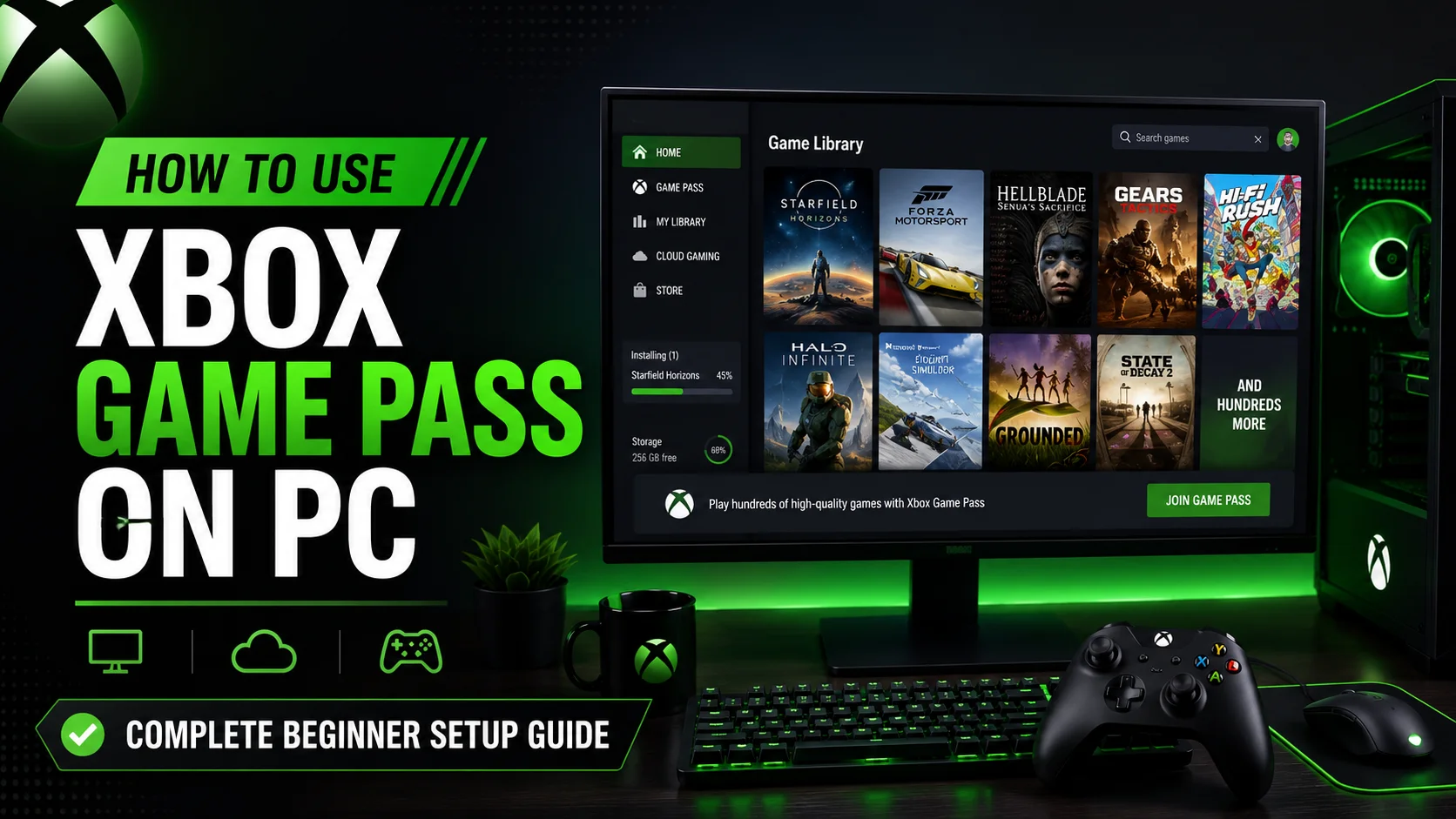

Want to use Xbox Game Pass on PC but not sure where to start? You are in the right place. Xbox Game Pass is not only for Xbox consoles. You can also use it on a Windows gaming PC, laptop, or handheld to download and play hundreds of PC games through the Xbox app.
For many players, the confusing part is knowing which app to install, which subscription to choose, where the games go, how cloud gaming works, and why some games ask for extra launchers like EA App, Ubisoft Connect, Battle.net, or Riot Client.
This guide explains everything in simple steps. By the end, you will know how to set up Xbox Game Pass on PC, install your first game, use cloud gaming, connect a controller, change install locations, manage storage, and fix the most common setup problems.
What Is Xbox Game Pass on PC?
Xbox Game Pass on PC is a gaming subscription that lets you access a large library of PC games through the Xbox app on Windows. Instead of buying every game separately, you pay for a monthly subscription and can download or play supported games as long as they remain in the Game Pass library and your subscription is active.
With PC Game Pass, you can install many games directly on your Windows PC. With Game Pass Ultimate, you also get extra benefits like cloud gaming support on compatible devices, depending on game availability and region.
You can use Xbox Game Pass on PC for big Xbox titles, indie games, day-one releases, EA Play games, and many PC-focused games. The exact library changes over time, so a game that is available today may leave later.
Xbox Game Pass on PC Requirements
Before you install anything, make sure your PC meets the basic requirements for the Xbox app and PC gaming.
| Requirement | What You Need |
|---|---|
| Operating system | Windows 10 or Windows 11, version 22H2 or higher |
| Xbox app storage | Around 150 MB for the app, plus storage for installed games |
| Display | 720p or higher display |
| Account | Microsoft account |
| Subscription | PC Game Pass or Xbox Game Pass Ultimate |
| Internet | Required for downloads, updates, login, cloud saves, and cloud gaming |
PC Game Pass vs Game Pass Ultimate: Which One Do You Need?
This is one of the most common questions beginners ask. The right plan depends on how you want to play.
| Plan | Best For | Main Benefits |
|---|---|---|
| PC Game Pass | Players who only want to play on Windows PC | PC game library, Xbox app access, many day-one PC releases, EA Play on PC |
| Game Pass Ultimate | Players who use PC, Xbox console, and cloud gaming | PC games, console benefits, cloud gaming on supported devices, extra perks |
If you only play on a Windows PC and do not care about cloud gaming or Xbox console benefits, PC Game Pass is usually enough. If you want the most flexible option across PC, Xbox console, mobile, browser, and cloud gaming, Game Pass Ultimate is the better choice.
How to Use Xbox Game Pass on PC
Here is the full setup process from the beginning.
Step 1: Check Your Windows Version
The Xbox PC app works on Windows 10 and Windows 11, but your system should be updated. Microsoft lists Windows 10/11 version 22H2 or higher for the Xbox PC app experience.
To check your Windows version:
- Press Windows + R.
- Type winver.
- Press Enter.
- Check your Windows version in the window that appears.
If your PC is outdated, open Settings > Windows Update and install available updates before setting up Game Pass.
Step 2: Install the Xbox App for Windows
The Xbox app is the main place where you browse, install, update, and launch PC Game Pass games.
To install it:
- Open the Microsoft Store on your PC.
- Search for Xbox.
- Select the official Xbox app.
- Click Get or Install.
- Open the Xbox app after installation.
On many Windows 11 PCs, the Xbox app is already installed. Click the Start button and search for Xbox to check.
Step 3: Sign In With Your Microsoft Account
Open the Xbox app and sign in with your Microsoft account. This should be the same account that has your PC Game Pass or Game Pass Ultimate subscription.
If you are using a family PC, double-check the account before subscribing or installing games. Many setup problems happen because the Xbox app is signed into one account while the Microsoft Store is signed into another.
Step 4: Choose PC Game Pass or Game Pass Ultimate
Inside the Xbox app, go to the Game Pass area and choose the plan that fits how you play. You can also manage your subscription from your Microsoft account page.
For most PC-only players, PC Game Pass is enough. For players who also want cloud gaming, Xbox console access, and extra perks, Game Pass Ultimate makes more sense.
Step 5: Browse the Game Pass Library
Once your subscription is active, open the Xbox app and click the Game Pass tab. You can browse by:
- Recently added games
- Most popular games
- Leaving soon
- Genres
- EA Play games
- Cloud gaming titles
- New releases
Click any game to open its page. Before installing, check the storage requirement, age rating, supported features, and PC system requirements.
Step 6: Install a PC Game Pass Game
To install a game:
- Open the Xbox app.
- Go to Game Pass.
- Select a game.
- Click Install.
- Choose the install drive if asked.
- Wait for the download to finish.
- Click Play.
Some games will install directly through the Xbox app. Others may need an extra linked launcher, especially EA Play, Ubisoft, Battle.net, or Riot titles. If the Xbox app asks you to connect another account or install another launcher, follow the on-screen steps.
How to Change the Install Location for Game Pass PC Games
If your C drive is almost full, change where Xbox app games are installed.
- Open the Xbox app.
- Click your profile icon.
- Go to Settings.
- Open Install options.
- Choose your default install drive or folder.
You can also check Windows storage settings:
- Open Settings.
- Go to System.
- Click Storage.
- Open Advanced storage settings.
- Select Where new content is saved.
If possible, install large games on an SSD. Games will usually load faster and update more smoothly compared to an older hard drive.
How to Use Cloud Gaming with Game Pass on PC
Cloud gaming lets you stream supported games instead of installing them. This is useful if your PC is not powerful enough, your storage is full, or you want to try a game before downloading it.
To use cloud gaming on PC:
- Make sure you have a Game Pass plan that includes cloud gaming.
- Open the Xbox app on Windows or go to Xbox cloud gaming in a supported browser.
- Sign in with your Microsoft account.
- Choose a cloud-supported game.
- Click Play.
- Connect a supported controller if the game requires one.
Cloud gaming depends heavily on your internet connection. For the best experience, use Ethernet or strong 5 GHz/6 GHz Wi-Fi.
If cloud gaming gives you trouble, check our guide on how to fix Xbox Cloud Gaming not working. You may also find our guide on how much data Xbox Cloud Gaming uses helpful if you have a monthly data cap.
Can You Use Xbox Game Pass on PC Without an Xbox Console?
Yes. You do not need an Xbox console to use Xbox Game Pass on PC. You only need a Windows PC, a Microsoft account, the Xbox app, and an active PC Game Pass or Game Pass Ultimate subscription.
An Xbox console is optional. If you own one, you may get extra benefits from cross-save, Xbox Play Anywhere games, and cloud saves. But for PC Game Pass itself, a console is not required.
Can You Play Game Pass PC Games With a Controller?
Yes. Many PC Game Pass games support controllers. The easiest option is an Xbox Wireless Controller, but many other controllers also work depending on the game.
You can connect an Xbox controller in three common ways:
- USB cable: Most reliable and easiest method.
- Bluetooth: Good for wireless play if your controller and PC support it.
- Xbox Wireless Adapter: Best wireless option for some Xbox controllers on PC.
Some games are better with mouse and keyboard, while others feel better with a controller. Check each game’s page for input support.
If you use Steam too and your controller buttons look wrong in some games, our guide on Steam showing Xbox buttons for a PS5 controller may help.
Do Game Pass PC Games Support Cloud Saves?
Many Xbox PC games support cloud saves, but support can vary by game. When cloud saves are supported, your progress can sync across compatible devices signed into the same Microsoft/Xbox account.
This is useful if you switch between a desktop PC, gaming laptop, Xbox console, or cloud gaming. Still, do not assume every game supports the same save behavior. Always check the game page or publisher details if save progress matters to you.
How to Update Game Pass Games on PC
Most Xbox app games update automatically, but you can also check manually.
- Open the Xbox app.
- Go to your Library.
- Look for games with available updates.
- Start the update if it does not begin automatically.
You should also keep the Microsoft Store, Gaming Services, and Windows itself updated. Many Xbox app issues on PC are caused by outdated Windows gaming components.
How to Uninstall a Game Pass Game on PC
To uninstall a PC Game Pass game:
- Open the Xbox app.
- Go to your Library.
- Click the game you want to remove.
- Click the three-dot menu or manage option.
- Select Uninstall.
You can also uninstall games from Windows Settings:
- Open Settings.
- Go to Apps.
- Open Installed apps.
- Find the game.
- Click Uninstall.
Common Xbox Game Pass PC Problems and Fixes
Xbox Game Pass on PC is much better than it used to be, but setup issues still happen. Here are the common ones.
| Problem | Fix |
|---|---|
| Xbox app does not recognize subscription | Sign into the same Microsoft account in Xbox app and Microsoft Store |
| Game will not install | Update Windows, Microsoft Store, Xbox app, and Gaming Services |
| Download is slow | Check Delivery Optimization, use Ethernet, and pause other downloads |
| Game crashes on launch | Update GPU drivers and check the game’s PC requirements |
| Game says unavailable | Check region, subscription plan, age settings, and whether the game left Game Pass |
Fix: Xbox App Does Not See Your Game Pass Subscription
This usually happens when your accounts do not match.
- Open the Xbox app.
- Check which Microsoft account is signed in.
- Open Microsoft Store.
- Check the account there too.
- Sign out and sign back into both apps with the same account.
- Restart your PC.
Fix: Game Pass Games Will Not Install
If installation fails, update these first:
- Windows Update
- Microsoft Store
- Xbox app
- Gaming Services
Then restart your PC and try again. If the issue continues, use Microsoft’s Gaming Services Repair Tool from the Xbox app troubleshooting area.
Fix: PC Game Pass Downloads Are Slow
Slow downloads can happen because of network congestion, Windows Delivery Optimization, Microsoft Store issues, or a weak Wi-Fi connection.
Try this:
- Use Ethernet instead of Wi-Fi.
- Pause Steam, Epic Games, Battle.net, and other downloads.
- Restart your router.
- Restart the Xbox app.
- Check Windows Delivery Optimization settings.
- Make sure your drive is not almost full.
If you also use Steam, you may like this related guide: how to fix Steam stuck on starting download.
Tips to Get the Best Experience With Xbox Game Pass on PC
- Use an SSD: Games load faster and updates feel smoother.
- Keep Windows updated: Xbox app features depend on Windows gaming components.
- Use Ethernet for big downloads: It is more stable than Wi-Fi.
- Check “Leaving Soon” often: Finish games before they leave the service.
- Try cloud gaming first: It can help you test a game before installing a huge download.
- Use the same account everywhere: Keep Xbox app, Microsoft Store, and Game Pass on the same Microsoft account.
- Check game requirements: Game Pass does not mean every game will run well on every PC.
Best Games to Try First on PC Game Pass
The Game Pass library changes over time, but beginners should start with games that are easy to install, popular, and good for testing your PC.
| Game Type | Good for Beginners Because… |
|---|---|
| Racing games | Easy to test controller support and PC performance |
| Indie games | Usually smaller downloads and easier system requirements |
| Story games | Great for testing cloud saves and controller comfort |
| Multiplayer games | Good for checking Xbox friends, party chat, and online features |
Before installing a very large game, check your free storage and internet data limits. If you are unsure, try cloud gaming first when the game supports it.
Read More
Related guides from StealthyGaming:
Final Thoughts
Using Xbox Game Pass on PC is simple once you know the correct setup path. Install the Xbox app, sign in with your Microsoft account, choose PC Game Pass or Game Pass Ultimate, browse the Game Pass library, and install a game from the Xbox app.
For most PC-only players, PC Game Pass is the right starting point. If you want cloud gaming, Xbox console benefits, and more flexibility across devices, Game Pass Ultimate is the better choice.
The biggest beginner mistake is using different Microsoft accounts in the Xbox app and Microsoft Store. Keep both apps on the same account, update Windows regularly, and install large games on an SSD when possible.
FAQs
Can I use Xbox Game Pass on PC without an Xbox?
Yes. You do not need an Xbox console to use Xbox Game Pass on PC. You only need a Windows PC, the Xbox app, a Microsoft account, and an active PC Game Pass or Game Pass Ultimate subscription.
Which app do I need for Xbox Game Pass on PC?
You need the Xbox app for Windows. This is where you browse the PC Game Pass library, install games, manage downloads, launch games, and access many Xbox features on PC.
Is PC Game Pass the same as Game Pass Ultimate?
No. PC Game Pass is mainly for Windows PC gaming. Game Pass Ultimate includes PC benefits plus additional features such as console benefits and cloud gaming on supported devices, depending on availability.
Can I play Game Pass PC games with keyboard and mouse?
Yes. Many PC Game Pass games support keyboard and mouse. Some games also support controllers. Input support depends on the game, so check the game page before installing.
Why can’t I install Game Pass games on PC?
You may be signed into the wrong account, missing Windows updates, using an outdated Xbox app, having Gaming Services issues, lacking storage space, or trying to install a game that is not available for your plan, region, or device.
Can I play Xbox Game Pass PC games offline?
Some installed PC games may work offline for a limited time, but you still need internet for setup, license checks, updates, cloud saves, online multiplayer, and cloud gaming. Online-only games require an internet connection.
Sources Checked
- Xbox: Xbox on PC
- Xbox: Xbox app for Windows PC
- Xbox Support: All about the Xbox app on PC
- Xbox Support: Fix gaming issues with the Xbox app for PC
- Xbox Support: Gaming Services Repair Tool for PC

Hi, I’m Ankit Kumar, the founder of StealthyGaming. I handle everything from SEO to researching and writing gaming articles. I’m passionate about helping fellow gamers stay updated with the latest tips, guides, and news. When I’m not optimizing content, I’m probably testing out new games or digging into strategies to make my articles as helpful and engaging as possible.